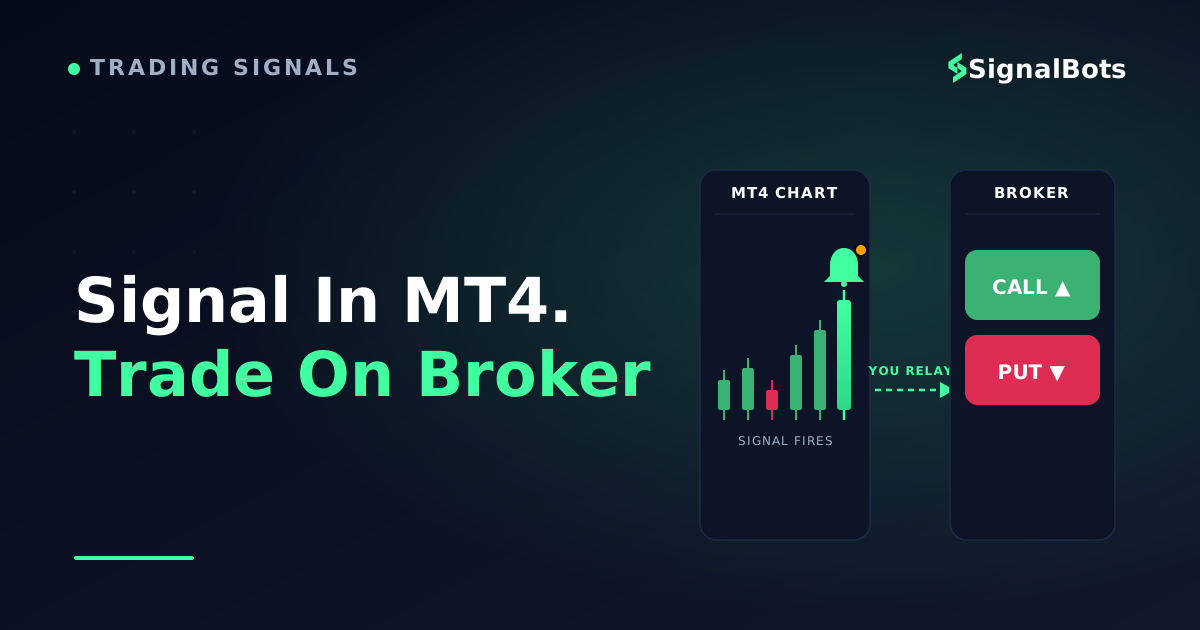
Your binary broker gives you a chart with three timeframes, a handful of indicators and no alerts. So you want the US500 chart open in MetaTrader 4 instead — your template, your signal indicator, your phone buzzing when the setup prints — and then you place the CALL or PUT on the broker terminal where the contract actually lives.
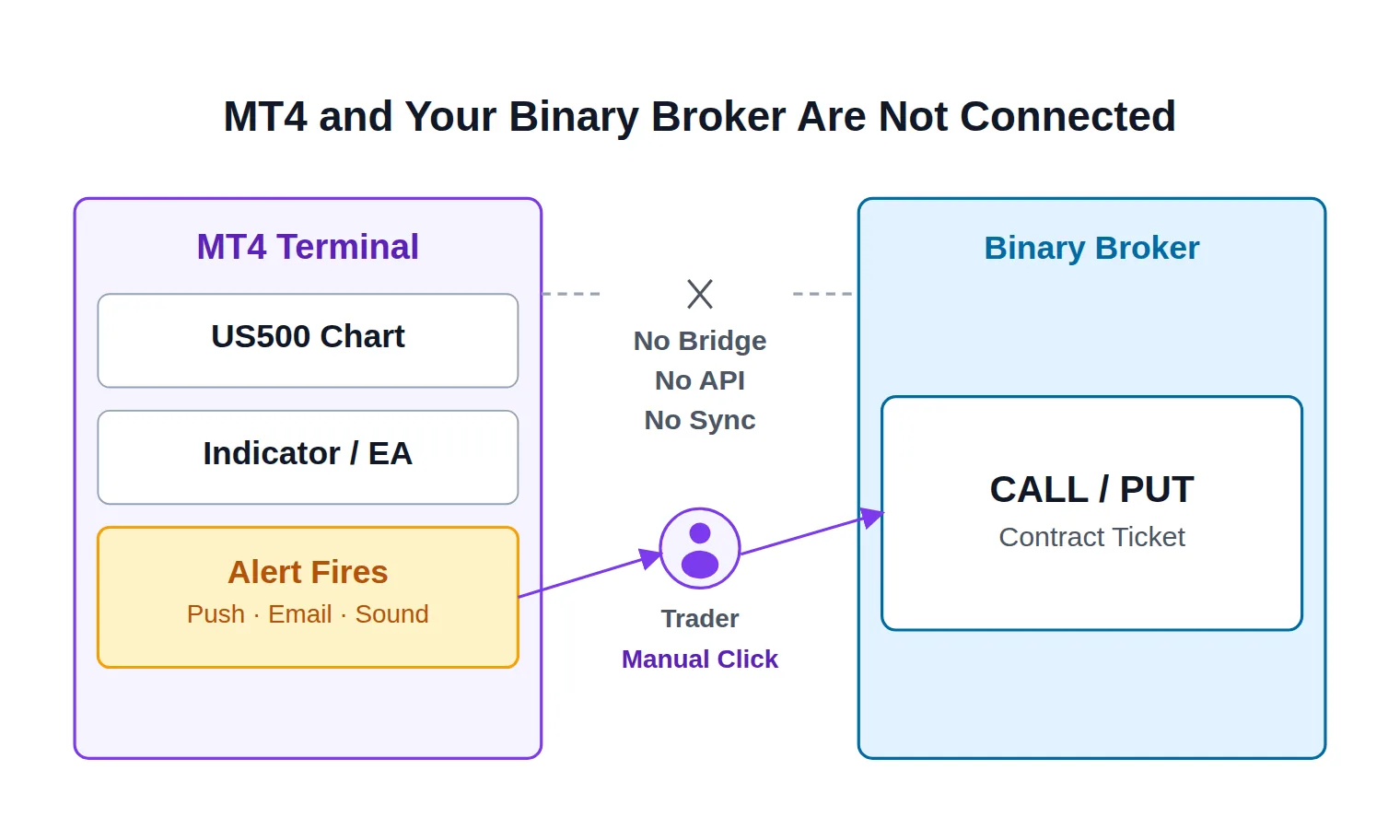
That split is the whole job, and it is the part no download page or forum thread ever spells out. MT4 is your analysis and alert engine. Your binary broker is your execution venue. There is no order type in MetaTrader 4 that opens a binary contract, and there never was for the retail platform, so nothing you install will make one appear. What MT4 can do is watch US500 tick by tick with far better tooling than a broker's web terminal and shout at you the moment your condition is met.
MT4 analyzes and alerts. Your binary broker executes. You are the bridge between them.
This guide is the click-through path for that setup: prerequisites, finding the right US500 symbol, matching the chart to your expiry, attaching a signal indicator or EA, wiring alerts so they actually reach you, turning a fired alert into a placed trade, and diagnosing the setup when it goes quiet. It assumes you already know what a binary options signal is, how to trade one once it fires, and what US500 binary options signals are as a concept — this page is only about getting them to appear, and fire, inside MT4.
Key Takeaways
MT4 is your analysis and alert engine, not your execution venue — no MT4 build opens a binary contract, so every US500 alert ends in a manual CALL or PUT on your broker's own terminal.
The symbol is the first blocker: brokers list the S&P 500 as US500, SPX500, SP500m or US500Cash, and a cash-index CFD prices differently from a futures-based one.
An alert has two layers — the indicator must produce it and Tools → Options → Notifications must deliver it. Silent setups almost always fail on the second.
Match the expiry to the candle that produced the signal, and verify delivery lag, repainting and alert frequency on demo before a real stake.
Table of Contents (26 min read)Contents
What You Need Before Setting Up US500 Signals in MT4
Four things, and the first one surprises people:
An MT4 account that quotes an S&P 500 index CFD. It does not have to be your binary broker, and usually it cannot be. Quotex runs its own web terminal with no MetaTrader at all; Pocket Option offers MT5 rather than MT4, and binary contracts are not tradeable there either. A plain demo account from any CFD broker whose symbol list includes an S&P 500 index is enough, because you are using it purely as a charting and alerting machine.
A binary account where the contract is placed. This is where CALL and PUT actually exist, on the broker's own platform.
The MT4 mobile app, installed and signed into the same trading account, if you want alerts on your phone rather than only on the desktop.
A machine that stays awake. MT4 only evaluates alerts while the terminal is running and connected. A sleeping laptop produces silence, not a backlog.
Nothing connects these two accounts. No bridge, no API key, no synchronisation — you are syncing your eyes, not your orders. That sounds like a limitation and it mostly is, but it also means you are free to pick the best chart feed available to you regardless of where you trade the contract.
One warning before you start installing things: anything advertising "binary options trading inside MT4" is one of three things — a broker-side plugin from the era when a few brokers bolted binaries onto MetaTrader, a panel that automates clicks on a broker's web page, or a fabrication. Judge the first two on their own merits, but do not expect the platform itself to grow a binary order ticket.
Where Do I Find the US500 Symbol in MT4?
Open Market Watch with Ctrl+M. If US500 is not in the list, it is almost certainly hidden rather than absent: right-click anywhere inside Market Watch and choose Symbols, which opens the full instrument tree grouped by category — Forex, Metals, CFDs, Indices, Futures, depending on how your broker organises it. Expand the indices group, select the S&P 500 entry, and click Show. It now appears in Market Watch, and you can drag it onto a blank chart or right-click it and pick Chart Window.
Resist the temptation to click Show All. It dumps every exotic pair and every dormant CFD into your Market Watch, and on a slow connection it gives the terminal several hundred extra symbols to keep updated for no benefit.
If the S&P 500 genuinely is not in the tree, the problem is your account type rather than your software. Some account tiers carry FX only. That is a support ticket, not a settings change.
Broker naming variants: US500, SPX500, SP500m and friends
There is no standard name for this instrument, which is why so many traders conclude their broker "doesn't have" it. The same index shows up as:
US500, USA500, SPX500, SP500 or S&P500 — the plain cash-index forms.
US500Cash, US500.cash, USSPX500 — spelled-out cash forms used by brokers that also list a futures version.
SP500m, US500.m, US500-ECN, US500.pro — the same instrument with an account-type suffix bolted on. Micro, raw-spread and swap-free accounts commonly get their own suffixed symbol set.
US500-SEP26, SP500Z6 and similar — a dated, futures-based contract rather than a rolling cash index.
Search the tree for 500 rather than for US500; it catches every variant at once. The exact string matters beyond finding the chart, because indicators and EAs sometimes reference the symbol name internally, alert text will quote it, and any signal source you cross-reference will spell it differently again. That translation between a symbol's identity and each platform's name for it is ordinary symbol mapping work, and getting it wrong is the reason someone ends up watching a chart of the wrong instrument on the right ticker.
Real index hours vs. the weekend OTC feed
Two distinctions decide whether your MT4 chart is even describing the same thing your contract settles against.
The first is what your broker's US500 tracks. A cash-index CFD follows the spot index and is financed daily; a futures-based CFD follows a specific expiry and rolls into the next one. They print different prices at the same moment and behave differently around a roll, which is worth understanding before you compare levels across platforms — the cash index CFD vs futures index CFD distinction is not academic when your contract turns on a handful of points.
The second is the weekend. Your MT4 chart is tied to a real market: when index trading is closed, the candles stop, the ticks stop, and every alert you configured stops with them. Your binary broker, meanwhile, may keep offering "S&P 500 (OTC)" all weekend — a synthetic series the broker generates itself, described in more depth under OTC market and weekend OTC trading. That series is not the index. Nothing on your MT4 chart — no level, no indicator state, no alert — carries over to it.
Real feed vs. weekend OTC
Mon-Fri: Real Feed Live
Ticks flow and candles form — your MT4 alerts can fire on the real S&P 500.
Friday Close
The real feed stops. No new ticks means no new alert conditions can fire.
Weekend: OTC Only
MT4 is frozen and silent, but your broker may still quote a synthetic "S&P 500 (OTC)" series.
Monday: Feed Resumes
Real ticks restart and your MT4 alerts sync back up with the live index.
The real S&P 500 feed goes dark every weekend — your broker's OTC quote does not.
Everything in this guide is built for the real weekday feed. And even inside market hours, expect your MT4 bid and your broker's strike to differ slightly: different liquidity providers, different cash-versus-futures basis, different rounding. Treat the MT4 price as your analysis price and the broker's quote as the price you are actually contracting on.
Set the Chart Timeframe to Match Your Binary Expiry
MT4 gives you M1, M5, M15, M30, H1, H4, D1, W1 and MN — no M2, M3 or M10 like MT5 (the bundled PeriodConverter script can build those as offline charts if you really need them). For binary work, most of that list is context and only the bottom two or three are triggers.
The logic for choosing is simpler than it looks. The signal candle and the expiry time have to describe the same move. A signal generated on an M1 close is a statement about the next minute or two of order flow; hang a fifteen-minute expiry on it and you are no longer trading the thing your indicator detected, you are hoping an unrelated move does not undo it first. Conversely, a signal derived from an M15 structure needs room to develop and will be strangled by a 60-second contract. Pick your chart timeframe from the expiry you intend to trade, not the other way around, and keep one chart per timeframe you actually trade rather than flipping a single chart back and forth — an indicator only calculates on the timeframe currently loaded.
Two mechanics that quietly break this alignment:
Bar close versus intrabar. An indicator evaluating on every tick can print an arrow, alert you, and then un-print it when the candle closes somewhere else. For a contract you cannot exit, that is the difference between a trade and a mistake. Prefer signals confirmed at bar close, and if the tool offers both modes, choose the confirmed one even though it costs you a few seconds of the window.
Duration expiry versus fixed-clock expiry. Binary platforms usually offer both: "5 minutes from now", or "expires at 15:35:00". With a fixed clock, the tradeable window shrinks as the candle ages — a signal printing at 15:34:40 against a 15:35:00 expiry is a twenty-second trade, not a five-minute one. If you trade candle-close signals, duration mode keeps the relationship between your chart and your contract stable. If your broker only offers fixed slots, take them right after a slot opens.
Timeframe vs. expiry
Matched timing vs. mismatched timing
Winner
Matched
Signal comes from an M1 candle, confirmed at bar close, not mid-candle.
Expiry set to duration mode: 5 minutes from the alert, not a fixed clock time.
The trade window covers the same move the indicator actually detected.
The contract expires on the same move the signal was built from.
VS
Mismatched
Signal comes from an M15 structure but expiry is a 60-second contract.
Expiry set to a fixed clock time, so a late signal gets a shrunk window.
The contract can resolve before — or long after — the detected move plays out.
The trade is now a bet on an unrelated tick, not the signal.
Match the candle that produced the signal to the expiry window, or the contract stops trading the thing your indicator found.
A candle-countdown indicator helps more here than any signal tool: knowing you have eleven seconds left on the M1 tells you whether to act now or wait for the close.
Add a Signal Indicator or EA to Your US500 Chart
Installation is the same for any custom tool. In MT4, choose File → Open Data Folder, then open MQL4. Custom indicators go in Indicators, expert advisors in Experts, and included source files in Include — the layout of the MetaTrader data folder is worth a look once so you stop guessing. Drop the .ex4 (or .mq4) file in, then either restart the terminal or right-click inside the Navigator window (Ctrl+N) and choose Refresh. Drag the tool from Navigator onto your US500 chart.
The properties dialog that opens is where most setups are won or lost:
Inputs tab — this is where alerting is switched on. Almost every signal tool ships with separate booleans along the lines of Alert, SendEmail, SendPush or Notify, and they are frequently false by default. If there is an "alert on bar close only" style input, set it true.
Common tab — tick Allow DLL imports only when the vendor genuinely requires it, since it grants the tool access outside the terminal. For an expert advisor, also tick Allow live trading, and switch on the AutoTrading button in the toolbar; an EA is running when its smiley face appears in the top-right corner of the chart.
Confirm the tool is actually alive rather than merely installed. Ctrl+I lists every indicator attached to the current chart, and the Experts and Journal tabs of the Terminal window record initialisation errors — a missing include file or an unhandled input will show up there while the chart looks perfectly normal.
Then test for repainting before you trust a single arrow. A repainting tool draws a signal on a candle after the fact, so its history looks immaculate and its live behaviour does not match it. The check costs nothing: when an alert fires, write down the timestamp and the candle it pointed at, come back an hour later, and see whether the arrow is still on that candle. If it moved, the tool is describing the past, not the next sixty seconds. The mechanics behind that failure are covered under repainting, and it is the single most common reason a "90% accurate" arrow indicator collapses in live use.
You do not necessarily need third-party code at all. If your method is level-based — prior day high, a round number, the overnight range edge — MT4's own Alerts tab will watch a US500 price level and notify you when it trades through, with no .ex4 file and no MQL4 involved. That covers a surprising share of index binary setups.
Whatever you choose, run one signal source per chart. Three arrow indicators stacked on one US500 chart produce three times the alerts and no way to know which one to act on inside a sixty-second window.
Turn On Push, Email, and Sound Alerts in MT4
An MT4 alert has two independent layers — production, where something decides an alert is due, and delivery, where the terminal routes it somewhere you will actually notice — and understanding the split is what separates a five-minute fix from an evening of frustration. Follow a single alert from the moment its condition is met to the moment it lands on your phone, and the two halves come apart cleanly:
Alert pipeline
How an MT4 alert reaches you
1
Condition is met
Price crosses your level, or the indicator's own code decides a signal condition is true.
2
Alert is produced
The indicator calls MT4's alert function, or your Alerts-tab entry fires — this layer is Production.
3
Terminal checks routing
Tools → Options → Notifications decides where that alert is allowed to go — this layer is Delivery.
4
It reaches you
Popup, sound, email or a push notification to your phone — whichever channels you enabled.
An alert that never reaches you almost always died in Delivery, not Production.
Production is per-tool: each indicator, EA or Alerts-tab entry decides for itself. Delivery is configured once, globally, in Tools → Options, and applies to everything the terminal produces — which is why setups that "don't work" are usually producing alerts perfectly well and delivering them nowhere.
To build an alert yourself, open the Terminal window with Ctrl+T, switch to the Alerts tab, right-click and choose Create. The dialog takes a symbol, a condition (bid or ask crossing a value, or a time), the action to take — Sound, File, Mail or Notification — a source such as the .wav file to play, and controls for how many times it may repeat and how long to wait between repeats. It is a blunt tool compared with an indicator, and for level trading on US500 it is entirely sufficient.
Tools → Options → Notifications and MetaQuotes ID pairing
Push notifications are the part the forum threads never finish explaining. The chain is: your phone generates an ID, you paste that ID into the desktop terminal, and the desktop terminal sends messages to it through MetaQuotes' servers.
Install the MetaTrader 4 app on your phone and open it at least once.
In the app, go to Settings → Messages (on Android it is exposed as MQID in the chat screen) and copy the eight-character MetaQuotes ID.
On the desktop, open Tools → Options → Notifications, tick Enable Push Notifications, and paste the ID. You can list several IDs separated by commas if you carry two devices.
Click Test. A message should land on the phone within a couple of seconds.
If the test fails, work down this list: a mistyped ID, an app that was installed but never opened, notifications disabled for the app at the operating-system level, or aggressive battery optimisation suspending it in the background. Fix the test before you touch anything else — no indicator alert will ever arrive while the test does not.
Two limits worth knowing. Push reaches the MetaTrader app only; it is not SMS, and it will not arrive if the phone is offline. And MetaQuotes throttles how many messages a terminal may push in a short window, so an indicator alerting on every tick will get rate-limited and you will lose the alert that mattered inside a flood of ones that did not. That is another argument for bar-close confirmation. The behaviour of these mobile alerts as a delivery channel is covered under push notification alert.
How to Set Up MT4 to get Push Alerts — Mark Ursell
Email and sound alerts as a backup channel
Email is configured under Tools → Options → Email: SMTP server and port, login, password and the from/to addresses, with its own Test button. Mail providers with two-factor authentication will require an app-specific password rather than your normal one. Email delivery is unpredictable by seconds to minutes, so treat it as an audit trail of what fired and when, not as a trigger for a one-minute contract.
Sound is the underrated channel when you are at the desk. Tools → Options → Events assigns a .wav to each terminal event; give the alert event a sound you use nowhere else, so you can distinguish "signal" from "order filled" without looking. For 60-second expiries, the speaker beats the phone every time — the notification that reaches you fastest is the one worth wiring first.
Reading a US500 Signal and Placing the Trade
A fired alert gives you five pieces of information: symbol, timeframe, direction, the price at the moment it fired, and a timestamp. That timestamp is in MT4 server time, which is your broker's chosen offset — commonly a couple of hours ahead of GMT — and not your local clock or your binary broker's clock. Note your terminal's offset once by comparing the current M1 candle's time to a known clock, and write it on a sticky note.
Then execute in the order that protects the window:
Pre-stage the broker tab before the alert. Asset set to the S&P 500 instrument, stake typed in, expiry mode and length selected. The only action left when the alert lands is one click.
Read the direction and act, or skip. A CALL or PUT contract pays on direction alone, and the mechanics of that are covered under call and put — you are not managing the trade after entry, so entry quality is all you own.
Apply a freshness rule you defined earlier. Decide, in advance, how far US500 may travel from the alert price before the setup is void. Ten seconds of hesitation on a one-minute contract consumes a sixth of the trade, and the further price runs, the more you are paying for a move that has already happened — the stale signal problem in its purest form.
Size the stake by rule, not by feel. Your broker's payout percentage determines the win rate the setup has to clear before it breaks even, and that number is worth computing rather than assuming — the binary break-even win rate calculator turns a payout into the hit rate you need. A binary contract can lose the entire stake, which is why position sizing carries the whole risk model here; the risk warning is worth reading before you scale anything up.
Log the round trip. Alert time, chart price, the strike you actually got, expiry, outcome. After a couple of weeks, that log tells you whether your losses come from the indicator or from the seconds you spend switching windows — and those are completely different problems with completely different fixes.
Test the Whole Chain on a Demo Account First
Run the finished setup for two full sessions with your MT4 alerts pointed at a demo account and your entries placed on your binary broker's practice mode. You are not testing whether the strategy is profitable — that is a longer forward test — you are testing whether the plumbing works.
Three things to measure: how many seconds pass between the candle closing and the notification reaching your phone; whether the arrows are still on the candles they fired on when you check back; and how many alerts a session actually produces. That last one decides whether the setup is tradeable at all. Forty US500 alerts in a New York session is not a signal service, it is noise, and no amount of alert configuration will fix it.
Why Aren't My MT4 Alerts Firing? Troubleshooting Common Setup Issues
Work through these in order — they are sorted by how often they turn out to be the cause.
The chart is not receiving ticks. Check the connection status in the bottom-right corner of the terminal, and check that the newest candle has a live time. A chart showing "Waiting for update" or a frozen last candle produces no alerts because nothing is evaluating. On a weekend or a US holiday this is expected behaviour, not a fault.
The alert reaches the Alerts tab but not your phone. Production is fine, delivery is broken. Re-run the Test button under Notifications. If the test itself fails, the fault is in the pairing — ID, app state or OS permissions — and never in the indicator.
The indicator never alerts at all. Reopen its properties and confirm the alert inputs are true; they default to false more often than not. Check whether it only alerts at bar close, in which case mid-candle silence is correct. For an EA, verify Allow live trading and the global AutoTrading toggle are both on. Then read the Experts and Journal tabs — an initialisation error there explains a tool that looks attached but never runs.
The terminal was closed or the machine slept. MT4 evaluates nothing while it is not running, and it does not replay missed conditions on restart. If you need alerts while you are away from the desk, that is what a VPS for EA hosting exists for.
You are drowning in repeated alerts. Either the Alerts-tab entry has a high iteration count and a short timeout, or the indicator alerts on every tick rather than once per bar. Both are settings, not bugs.
The alert time does not line up with your broker's clock. Your MT4 server time, your local time and your binary broker's expiry clock can be three different numbers. This bites hardest around the US cash open and close, when your index CFD's behaviour changes character within the same trading session, and again around the daily maintenance break most index CFDs observe — a break in the feed is not a signal, but an indicator reading the gap on either side of it may think otherwise.
Your MT4 price and the broker's strike disagree. Expected, as covered above. If the gap is large and persistent rather than a few points, check whether you are charting a futures-based symbol against a cash-index contract.
The symbol vanished from Market Watch. MT4 hides symbols that have had no activity in the current session on some builds. Re-show it from the Symbols tree and save your chart setup as a profile (File → Profiles → Save As) so a re-show does not cost you your templates.
See Live US500 Binary Signals Alongside Your MT4 Setup
Once your own alerts are firing, the useful next question is what a fully-formed US500 signal looks like when someone else states it — because the shape of a good one tells you what your own alert text is missing.
Our live binary options signals dashboard tracks US500 among its forty symbols in real time, and each row states the same four things your MT4 alert should: direction (Call or Put), the strike price the call was made at, the expiry length, and a GMT timestamp. That last field is the practically useful one while you are configuring MT4 — because the dashboard stamps everything in GMT, you can hold it next to your chart and work out your terminal's server-time offset in one glance instead of guessing. The US500 signals page narrows the same feed to this one index if you only trade the S&P 500.
Be clear about what it is not: it is a web dashboard, not an MT4 expert advisor. It does not push anything into your terminal, so it lives in a second browser tab next to your chart and you cross-reference it by hand, and full detail on some signals is reserved for VIP access. If you specifically wanted signals delivered into MT4, the setup in the sections above remains the answer — this is the reference feed you check it against, not a replacement for it.
Quick-Start Checklist
Ten minutes, in order — tick them off as you go:
Quick-start
Quick-Start Checklist: US500 Signals in MT4
0 / 10
Open MT4 on an account that quotes an S&P 500 index CFD, with your binary broker open in a second window.
Confirm whether it's a cash-index or futures-based symbol, and expect the price to differ from your broker's strike.
Open the chart on the timeframe that matches the expiry you actually trade, plus a candle countdown.
Copy your indicator or EA into File → Open Data Folder → MQL4, refresh Navigator, and drag it onto the chart.
In Inputs, switch every alert option on and prefer bar-close confirmation; for an EA, enable Allow live trading and AutoTrading.
Pair push notifications: phone Settings → Messages for the MetaQuotes ID, desktop Tools → Options → Notifications, paste, Test.
Assign a distinctive sound under Tools → Options → Events, and set up email as a backup audit trail.
Pre-stage the broker ticket — asset, stake, expiry — so a fired alert costs one click.
Run the whole chain on demo for two sessions, checking delivery lag, repainting and alert frequency.
★
Checklist complete — you’re cleared to proceed.
Ten minutes, ticked off as you go, before a real stake ever touches the setup.
Get the symbol and the delivery layer right and the rest is your strategy's problem, not the platform's. That is the honest division of labour: MT4 tells you when, on your terms and in your time, and the broker terminal is still where you press the button.
FAQ
Can I place binary options trades directly in MT4?
No. The retail MT4 terminal has no binary order type — its order tickets are for market, pending and stop orders on spot and CFD instruments. A handful of brokers historically bolted binary panels onto MetaTrader through server-side plugins, and some third-party tools automate clicks on a broker's web platform, but the platform itself will not open a CALL or PUT. Use MT4 to generate and deliver the signal, and your binary broker's terminal to trade it.
Which MT4 timeframe should I use for a 5-minute US500 expiry?
Match the candle that produces the signal to the life of the contract. An M1 chart with confirmation at bar close gives a five-minute expiry roughly five candles to resolve, which is usually the practical balance; M5 works if your method needs the larger candle's structure but leaves you acting on a signal that consumes the entire window. What matters more than the specific choice is consistency — changing timeframe between trades makes your log unreadable and hides whether the setup or the timing is at fault.
Why is the US500 price in MT4 different from my binary broker's strike price?
Different feeds. Your MT4 quote comes from your CFD broker's liquidity providers; your binary broker prices its own contracts, sometimes from a different provider entirely, and may be quoting a futures-based value against your cash index or vice versa. Small, persistent differences are normal. Always let the broker's own quote be the number your contract turns on, and use the MT4 chart for analysis and timing.
Do I need to leave my computer on to receive MT4 alerts?
Yes. MT4 evaluates alert conditions only while the terminal is running and connected, and it does not replay conditions that were met while it was closed. A sleeping laptop is the same as a closed terminal. If you need coverage through a full session while away from the desk, run the terminal on a VPS.
Can I get US500 alerts from MT4 on the weekend?
Not for the real index. When the underlying market is closed your MT4 chart receives no ticks and no alert can fire. Your binary broker may still offer an OTC S&P 500 instrument over the weekend, but that is a synthetic series the broker generates, priced independently of the index — your MT4 levels, indicator states and alerts have nothing to say about it.
What is a MetaQuotes ID and where do I find it?
It is an eight-character identifier your mobile MetaTrader app generates, and it is how the desktop terminal addresses your phone. Find it in the app under Settings → Messages (Android surfaces it as MQID in the chat screen), then paste it into Tools → Options → Notifications on the desktop and press Test. Until that test message arrives, no indicator alert will reach the phone either.
Sources & Further Reading
Want to go deeper? These independent, authoritative sources shaped this guide — each one is worth reading in full:
The Binary Options Desk is the SignalBots editorial team for fixed-time and OTC trading coverage. We research and write the guides that explain expiry timing, payout structure and disciplined entry across the major brokers.



Discussions 0
Leave a comment