Your EA does not know that you shut the lid. It just stops.
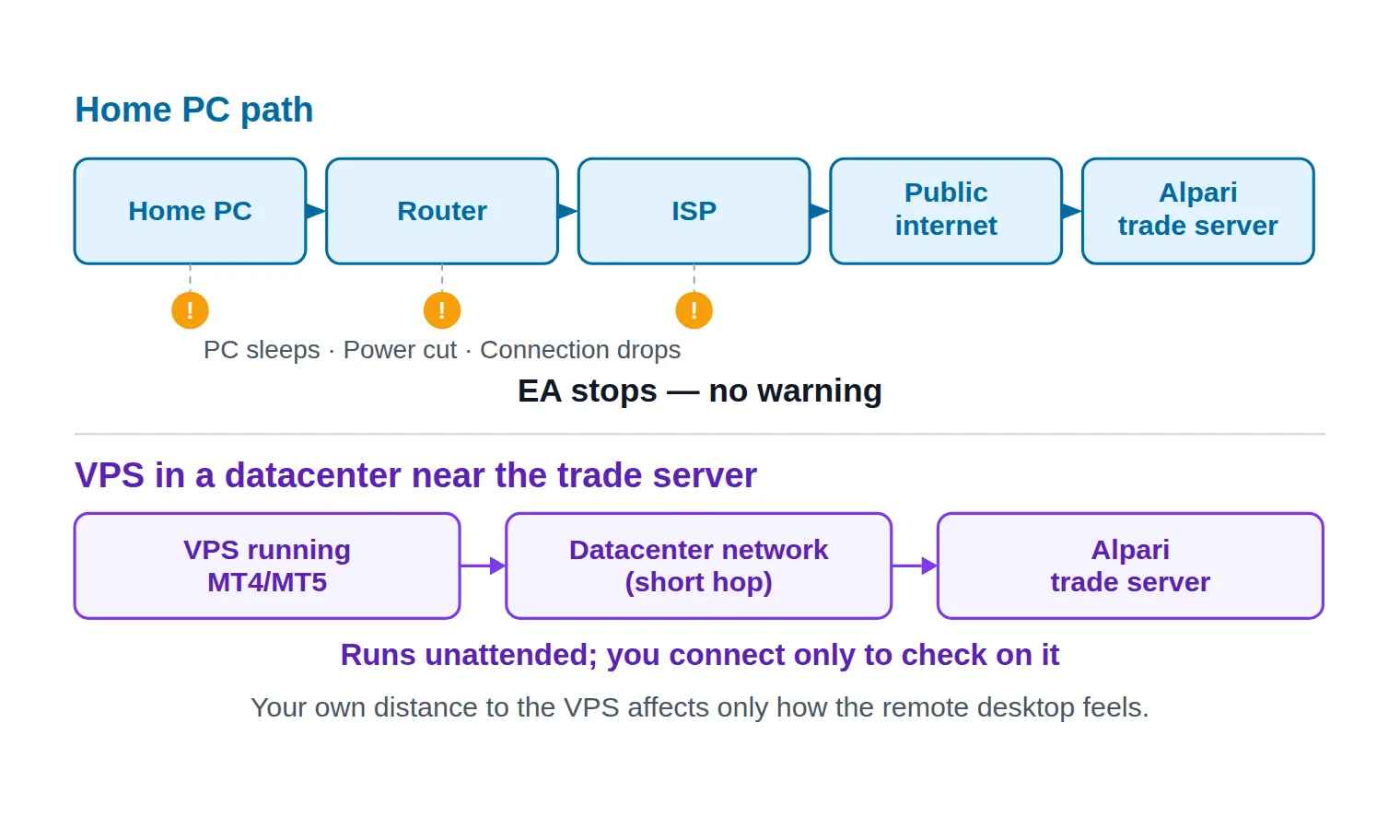
That is the entire problem behind an Alpari VPS. MetaTrader only trades while the terminal is open and connected, so a sleeping laptop, a 3 a.m. Windows update or a five-minute drop from your internet provider is enough to miss the setup your strategy waited all week for — and nothing warns you. The charts look identical when you wake up. The trade simply never happened.
This guide covers the hosting half of automation end to end: whether Alpari's own VPS applies to you, how to get MT4 or MT5 running unattended on a remote machine, how to pick a location that does not quietly cost you fills, and the handful of silent failures that stop an EA a week after a setup that looked perfect. It assumes you already know how to install MetaTrader, log in, and attach an EA to a chart.
Key Takeaways
Alpari-style broker VPS plans are usually free above a monthly trading-volume threshold and paid below it — confirm current terms in your client area, not on a third-party bonus page.
Setup is five moves: activate, connect over Remote Desktop, install the broker's MT4/MT5 and log in, copy the EA into the data folder, enable AutoTrading — then disconnect, never sign out.
Choose the datacenter closest to your broker's trade server, not to your home, and verify the ping in the terminal instead of trusting an advertised figure.
Most 'the VPS is running but nothing trades' cases are an algo-trading permission, an investor password, a blocked DLL or WebRequest call, or a machine-bound EA licence.
Table of Contents (22 min read)Contents
What Changes When Your EA Runs on a VPS Instead of Your PC
A virtual private server is a slice of a datacenter machine rented to you as a full Windows desktop. You never see the hardware; you connect to it over Remote Desktop, install MetaTrader on it exactly as you would on your own computer, and then walk away. A VPS built for an EA is simply one that lives close to broker infrastructure and is expected to stay up for months at a time.
Three things change the moment your terminal moves there. Uptime stops depending on your household — no sleep, no power cuts, no router reboots. The network path to Alpari's trade server gets shorter and far more stable than a consumer connection. And your own machine becomes optional: you can close the laptop, travel, or reinstall Windows at home without touching the running strategy. Moving the terminal off your desk is the whole change — everything else about the strategy stays exactly as it was.
Three things do not change, and it is worth being blunt about them. A VPS does not improve your Expert Advisor's logic, it does not reduce market risk, and it will execute a badly-parameterised strategy with perfect discipline all week long. Hosting is infrastructure. The point of algorithmic trading is that your rules run without you — a VPS only guarantees they get the chance to.
There are three realistic ways to get that always-on terminal for an Alpari account: Alpari's own VPS offer, MetaTrader's built-in virtual hosting (rented from inside the platform itself), and a specialist third-party forex VPS. Most articles on this topic only discuss the third. The rest of this guide resolves that fork first, then walks the setup.
Does Alpari Offer a Free VPS?
Yes — Alpari has offered VPS hosting to its clients, and the usual shape of a broker-provided plan is that it is free while your account stays active enough, with a paid monthly subscription as the fallback if it does not. Broker hosting terms move around, differ by regional entity, and are frequently quoted out of date on bonus and affiliate sites, so treat any spec sheet you find on a third-party page as a rough sketch and confirm the current conditions in your own client area or with Alpari support before you plan around them.
Eligibility: trading activity and the paid fallback
Broker-sponsored hosting is almost always tied to traded volume, measured in lots over a calendar month, sometimes combined with a minimum balance. The waiver is not a reward for depositing; it is a rebate on activity, which is why it fits a trader running an EA that opens positions regularly and fits a long-hold swing strategy poorly.
Run the arithmetic honestly before you commit:
You comfortably clear the volume threshold. The broker's VPS is the cheapest and least fiddly option — take it.
You trade micro lots or a handful of positions a month. Assume you will pay the monthly fee. Compare that fee against what the strategy realistically produces; if hosting eats a visible share of it, MetaTrader's built-in hosting is usually the smaller bill.
You are still evaluating the EA. Do not buy hosting yet. Forward-test on a demo account first — a strategy that is not ready to run unattended does not need a machine that never sleeps.
How to request it through your Alpari account
The route is the same at every broker that offers this, even as the menu labels get reshuffled:
Log in to your Alpari client area — not the trading terminal.
Find the VPS or virtual-hosting entry under the services, tools or platforms area. Support can point you straight at it if the label has moved.
Submit the request for a specific trading account number. Broker-issued hosting is provisioned per account, and the eligibility check is run against that account's activity.
Wait for the credentials. You should receive a server address (or IP), a Windows username and a password by email or in your client-area messages.
Those three values are all you need for the next section. If they never arrive, check spam before opening a ticket — hosting credentials are one of the most commonly filtered emails a broker sends.
How to Set Up MT4/MT5 on Your Alpari VPS
Here is the whole path in five moves, before we break each one down.
Setup at a glance
From VPS credentials to an EA trading unattended
1
Activate and collect your credentials
Request the VPS for one specific trading account. The host returns a server address, a Windows username and a password.
2
Connect over Remote Desktop
Sign in to the remote Windows desktop. From here on you are configuring a machine that runs whether your own PC is on or not.
3
Install the terminal and log in
Download MT4 or MT5 inside the VPS, log into the trading account, and confirm the trade server name matches your account details.
4
Copy the EA into the data folder
File > Open Data Folder > MQL4 or MQL5 > Experts, paste the EA, refresh the Navigator, then attach it to the chart with its settings.
5
Enable algo trading, then disconnect
Switch AutoTrading on, confirm the EA initialised in the Experts log, then close the Remote Desktop window - never sign out.
The five moves that take you from a set of credentials to a strategy trading without supervision.
Activate the VPS and connect via Remote Desktop
On Windows, open Remote Desktop Connection (search for it, or run mstsc), enter the server address, then the username and password you were sent. On macOS, install Microsoft's Remote Desktop client and add the same details as a new PC. Expect a certificate warning on the first connection; accepting it is normal for a freshly provisioned server.
Two settings save you pain later. Set a modest screen resolution — you are configuring a terminal, not gaming, and a smaller desktop is far more responsive over a slow hotel connection. And in the connection's Local Resources tab, share your local drive so you can drag your EA file, indicators, templates and .set files straight across instead of emailing them to yourself.
Install the terminal and drop in your EA
Download MetaTrader 4 or MetaTrader 5from Alpari, inside the VPS rather than copying your local installation over. The broker-branded installer already lists the correct trade servers, which removes the most common first-login failure. Log in with your trading account and check that the server name shown in the terminal matches the one in your account details exactly — several similarly-named servers usually appear in the list.
Then place the robot:
In the terminal, open File → Open Data Folder. This opens the MetaTrader data folder, which is where the platform actually reads your files from — not the folder you installed to.
Go into MQL4\Experts (MT4) or MQL5\Experts (MT5) and paste your .ex4 or .ex5 file. Custom indicators the EA depends on go in the Indicators folder beside it.
Back in the terminal, right-click the Navigator panel and choose Refresh. Your EA appears under Expert Advisors.
Drag it onto the chart, load your .set file in the Inputs tab, and confirm the timeframe matches what you tested.
Remember that this terminal is a brand-new profile. Templates, custom indicators, preferred chart settings and any saved input presets exist only on your home machine until you copy them over. If your EA references a specific symbol name, check Alpari's symbol spelling on this account too — a suffix difference is enough to make an EA sit on the chart doing nothing.
Enable AutoTrading and the algo permission
This is the step that most often looks done and is not.
MT4: click AutoTrading in the toolbar so it turns green, then confirm Tools → Options → Expert Advisors → Allow automated trading is ticked.
MT5: click Algo Trading in the toolbar, and confirm Tools → Options → Expert Advisors → Allow algorithmic trading. MT5 also carries a per-EA switch: reopen the EA's properties on the chart and make sure the algo trading permission is enabled there as well. The global toggle alone is not enough.
If your EA imports DLLs — common for commercial robots with licence checks or external libraries — tick Allow DLL imports in the same dialog.
If your EA calls a web service, add each URL to the WebRequest whitelist in that dialog. An unlisted URL is silently refused.
Then verify rather than assume: in MT4 the chart's top-right face should be smiling; in MT5 the EA icon should have no cross beside it. In both, the Experts tab of the Toolbox should show the EA's initialisation message, and the Journal tab should show a successful login.
Detach without stopping the terminal
Close the Remote Desktop window, or use the disconnect button. The Windows session keeps running behind you, MetaTrader stays open, and the EA keeps trading.
Never use Start → Sign out (or Log off). That ends the session and closes every program in it, including your terminal — and it is the single most common way a brand-new VPS setup dies within the first hour. Shutting the machine down does the same thing more thoroughly.
Which VPS Location Is Best for Alpari?
Latency, in this context, is the round-trip time between the machine running your terminal and the broker's trade server. It is the number every VPS provider puts on its homepage, and it is almost never the number that applies to you: an advertised figure is a best-case measurement from that provider's datacenter to some broker's server, usually on a quiet day.
The gain is two-sided: fewer hops to the broker, and no local events that can stop the terminal.
Measure it yourself instead, which MetaTrader makes easy. The bottom-right corner of the terminal shows the connection status and the current ping to the trade server; hover it to read the figure. Do that on your home PC, then on the VPS, and compare. The server list in the login dialog also pings each available trade server, so you can see which of Alpari's servers your account is nearest before you finish setting up.
Two things follow from that, and they are the ones competitor pages skip:
Pick the datacenter near your broker, not near you. Your own distance to the VPS only affects how snappy the remote desktop feels while you are clicking around. It has no effect on order round-trips, because once you disconnect, the conversation is entirely between the VPS and the trade server. European forex brokers commonly host in the London and Amsterdam datacenter clusters — choose the region your account's server actually answers from.
Judge the gain against your strategy's holding time. A shorter network path improves execution speed and narrows the window in which price moves between your EA's decision and the broker's fill — which is where slippage and requotes come from. For a news or scalping EA, tens of milliseconds are a real cost; for a strategy that holds positions for two days, they are noise and the uptime is the whole benefit.
One related trap: check the VPS's clock and timezone against the broker's server time. If your EA only works certain forex market hours, a server sitting in a different timezone is a common reason a session filter never fires — or fires at the wrong hour.
Be equally clear about what low latency cannot do: it shortens your half of the trip only. Your broker's own order processing, liquidity at that moment, and the instrument's spread behaviour around news are unaffected by where your terminal sits.
Choosing Between Alpari's VPS, MetaTrader's Built-In Hosting and a Third-Party Host
MetaTrader's own virtual hosting is the option most guides forget, and for a lot of readers it is the right answer. It is rented from inside the platform — you register a virtual server from the terminal, then run a migration that copies your charts, EAs, indicators, signal-copying setup and WebRequest permissions to it in one command. There is no Remote Desktop and no Windows to maintain. The catch is significant: DLL calls are not allowed on the virtual platform, scripts are not migrated, and charts on custom symbols or non-standard timeframes do not transfer.
Request it for a trading account in your client area
Register a virtual server in the platform, then migrate
Order a plan, pick a datacenter, install everything yourself
EAs that need DLL imports
Supported
Not supported - DLL calls are blocked
Supported
What moves across automatically
Nothing - you install and configure by hand
Charts, EAs, indicators and WebRequest permissions in one command
Nothing - you install and configure by hand
Choosing the location
Fixed by the broker
Pick the virtual server with the lowest ping to your trade server
You choose the datacenter
Cost shape
Typically free above an activity threshold, otherwise monthly
A subscription billed through your MQL5 account
A monthly fee per plan
Fits you when
You trade enough volume to qualify and want a plain Windows box
Your EA is self-contained and you want the shortest path
You need specific specs, several terminals, or a specific datacenter
The same job, three very different trade-offs - the DLL row alone decides it for many commercial EAs.
So the best VPS for Alpari is not a brand — it is whichever of these three sits closest to the trade server your account uses and supports everything your EA needs. Work down in this order: does the EA need DLLs (if yes, built-in hosting is out); do you clear the broker's activity threshold (if yes, the broker's own VPS is the cheapest full desktop); does anything else about your setup — multiple terminals, a specific region, more memory — argue for a specialist host.
On sizing, ignore the plan names and count what you will actually run. As a planning rule of thumb, reserve headroom for Windows itself and then roughly a gigabyte of memory per running terminal, more if that terminal carries many open charts or an EA that recalculates heavy indicators on every tick. One account with one EA on a couple of charts is a small-plan job. Four terminals across several accounts, each with a dozen charts, is not — and a VPS that starts swapping memory to disk introduces exactly the lag you rented it to avoid.
Keeping Your VPS and EA Running Long-Term
Day one is the easy part. The failures that matter happen in week three, while you are not looking.
What survives a reboot, and what does not
Assume the machine will restart without asking — Windows updates, host maintenance and hardware events all do it. A reboot is harmless only if you prepared for it:
Windows must log in by itself. If the machine boots to a lock screen, nothing on it starts. Enable automatic sign-in for the account MetaTrader runs under, or ask the host to.
The terminal must be told to start. Put a shortcut to the MT4/MT5 executable in the Startup folder (shell:startup) so it launches with the session.
The login must be saved, or the terminal opens to a disconnected chart and your EA sits there with no prices.
Permissions must be re-checked, not assumed. After the first reboot, reconnect once and confirm AutoTrading is still on, the EA is attached, and the Experts log shows it initialising. Verify it — one screenshot of a smiling face is worth a week of guessing.
Take a snapshot once everything works, if your host offers one. Then a broken update is a restore, not a rebuild.
Why an EA silently stops trading, and how to spot it
Almost none of these throw an error you would notice from the outside. The terminal stays open, the chart keeps updating, and no orders appear.
Troubleshooting
My EA is on the VPS but nothing is trading - work down this list
0 / 11
The AutoTrading / Algo Trading toolbar button is actually on (green), not just enabled in Options.
In MT5, the per-EA algo trading permission is ticked in the EA's own properties dialog, not only globally.
The chart shows the EA active - a smiling face in MT4, no cross beside the EA name in MT5.
The Experts tab shows this EA initialising, with no 'removed' or 'incompatible' line after it.
Allow DLL imports is ticked if the EA needs it, and every URL the EA calls is in the WebRequest list.
You logged in with the master password, not the read-only investor password.
The symbol on the chart matches the exact name and suffix Alpari uses on this account.
The EA's licence covers this machine and this account number - many vendors bind to one or both.
No second EA is fighting for the trade context on the same terminal, and no manual trade is blocking it.
The market is actually open for that symbol, and the strategy's session or news filter is not holding it back.
The disk is not full - a chatty EA writing logs for weeks can fill a small VPS volume.
★
Checklist complete — you’re cleared to proceed.
Checked in order, this list resolves nearly every 'the VPS is running but the robot is not' case.
Two of those deserve a sentence of their own. If you handed the terminal the investor password, everything looks normal and no order will ever go through, because that password is read-only by design. And commercial robots frequently ship with an account-bound licence tied to a trading account number, a machine, or both — moving to a VPS can be exactly the event that invalidates it, so re-authorise with the vendor before you assume the setup is broken.
Finally, give yourself an early-warning channel. Set your MetaQuotes ID in Tools → Options → Notifications so the terminal can send a push notification to the MetaTrader mobile app when it trades. Silence then means something, instead of meaning nothing.
Add Live Forex Signals to Your Always-On Setup
Once the VPS is up, you own something you did not have before: a machine that is watching the market during every session, whether you are awake or not. That changes what is worth having open on it.
Our live forex signals are free to follow and can sit in a browser tab on that same always-on session, next to the terminal. Each setup shows its direction and levels with the reward-to-risk context attached, so when your EA is flat and you are looking at a market manually, you are reading the same structure the terminal is trading through — and because the feed is delivered in near real time, the signal latency between publication and what you see on the VPS stays small.
Be clear about the boundary: that is a feed for you to review, not an EA. Nothing on the VPS acts on it unless you have your own automation wired to do so, and adding it changes nothing about how the robot you just installed behaves.
Hosting Is Infrastructure, Not an Edge
The reason to move an Alpari terminal onto a VPS is narrow and worth stating plainly: it removes your household from the execution path. Everything else — whether the strategy is any good, whether your position sizing survives a losing run, which EA you should be running at all — is unchanged by the server it runs on, and those questions deserve their own work.
What you should have now is a decision (Alpari's own VPS, MetaTrader's built-in hosting, or a specialist host), a working setup, a latency figure you measured rather than read, and a list of the things that quietly break. Reconnect once a week, glance at the Experts log, and let the machine do the boring part.
You came in with
“an EA that stops the moment your laptop sleeps”
and you are leaving with
a terminal that trades whether you are awake or not.
Uptime is the part of automation nobody notices until it fails
A VPS turns your strategy from something that runs when conditions at home allow into something that runs on a schedule the market sets. The next layer is not more hosting - it is proving the strategy deserves to run unsupervised, and deciding in advance what should stop it.
Do I need to keep my own computer on once the EA is on the VPS?
No. That is the entire point. Once MetaTrader is installed on the VPS, logged in and running your EA, you can close the Remote Desktop window and shut your own machine down. Just disconnect from the remote session rather than signing out of it, since signing out closes the terminal along with everything else in that session.
Can I run several MT4 and MT5 terminals on one VPS?
Yes, and traders routinely do — one terminal per trading account, or separate installations for MT4 and MT5. Each terminal needs its own installation folder, and each one consumes memory and CPU continuously. Count the terminals and their open charts before you pick a plan; a machine that runs out of memory will lag exactly when the market is busiest.
Will a VPS make my EA more profitable?
Not by itself. It removes missed trades caused by your computer being off or offline, and it can reduce the delay between an order leaving the terminal and reaching the broker. Both help a strategy realise the behaviour it showed in testing — neither improves the strategy, and a robot that loses on your desktop will lose on a server too. Judge the change by fill quality and uptime, not by the equity curve alone.
My EA licence is tied to my computer. Can I still move it to a VPS?
Usually yes, but not silently. Many commercial EAs bind their licence to a machine, a trading account number, or both, and the vendor's portal is where you re-authorise the new machine or release the old one. Do that step before installing, or the EA will load on the chart and refuse to trade with a licence message in the Experts log.
Can I use MetaTrader's built-in virtual hosting with an Alpari account instead?
Yes — the virtual hosting service is part of the platform and works with a broker's MetaTrader account, subscribed and migrated from inside the terminal. It is the simplest route when your EA is self-contained. It is not an option when your EA imports DLLs, since DLL calls are not permitted on the virtual platform, and it will not carry over scripts or charts on custom symbols and timeframes.
Sources & Further Reading
Want to go deeper? These independent, authoritative sources shaped this guide — each one is worth reading in full:
The Forex Desk is the SignalBots editorial team responsible for our currency-market coverage. We research and write the guides, explainers and reference articles on how the majors, minors and crosses actually trade — sessions, spreads, swaps and the macro releases that move price.



Discussions 0
Leave a comment