MT4 pulls Alpari history through History Center (F2) on the M1 row and rebuilds every higher timeframe from it — but only if max bars in history and max bars in chart are raised and the terminal restarted first.
MT5 has no History Center: scroll the chart back with Home, or request and export a date range from the Symbols window (Ctrl+U), with max bars in chart set to Unlimited.
"No more data available for symbol" is the Alpari server's answer, not your mistake — depth varies by instrument, and the old website history archives are gone, so importing an external file is the real workaround.
A default MT4 run reconstructs the price path inside each minute bar, so note the modelling quality next to any result and forward-test before you act on it.
Table of Contents (28 min read)Contents
What You Need Before You Start
You loaded your robot into the tester, set EURUSD, picked a five-year window — and the run finished in four seconds with a dozen trades. Or MT4 answered your download click with "no more data available for symbol." Nothing is wrong with your logic. The terminal simply does not have the price history your test just asked for, and neither platform tells you that in plain words.
A backtest is only ever as honest as the bars underneath it, so the first job is getting Alpari's price history onto your machine, in full, on the right timeframe. Before you start, have these ready:
A logged-in terminal.MetaTrader 4 and MetaTrader 5 pull history from the server of the account they are connected to. A terminal sitting at the login prompt downloads nothing, and a demo server can hold a different depth of history than the live one.
The exact Alpari symbol name. Account types often carry suffixes — EURUSD, EURUSD.m, EURUSD.pro. Downloading history for one does not fill the other, and symbol mapping mismatches are the quietest way to test a strategy on the wrong instrument.
A decision about your test timeframe. You still download minute data even if you test on H1 — more on why in a moment — but the chart interval you intend to test determines how far back you actually need to go.
Disk space and patience. Years of one-minute OHLC bars per symbol run to hundreds of megabytes once you start collecting pairs, and the download is a server request, not a local copy.
A strategy worth testing. This guide solves the data pipeline, not the selection problem — evaluating an EA before backtesting it is a separate exercise, and running a bad robot over perfect data still produces a bad robot.
How to Download Alpari Historical Data in MT4 (History Center)
MetaTrader 4 does not stream history live into the tester. It keeps a local archive — one .hst file per symbol per timeframe — and the Strategy Tester replays those files. So an Alpari historical data download is really one operation: asking Alpari's history server to fill those local files, then confirming the terminal kept everything it was sent.
Opening History Center and Downloading a Symbol
Open Tools → History Center, or just press F2.
Expand the instrument group in the left tree and double-click the symbol you want. Match the suffix your account actually uses.
Select the 1 Minute (M1) row. This is the step most guides gloss over: MT4's Download button fetches M1 data and recalculates every higher timeframe from it. Downloading H1 directly gets you a thinner archive that the tester cannot refine.
Click Download and accept the warning that existing data for that period will be replaced.
Wait for the record count to stop climbing, then close and reopen the chart — an already-open chart keeps showing the old range until it is refreshed.
If the download stalls immediately and the record list barely moves, the cause is almost never the click. It is either the bar ceiling described next, or the server genuinely having nothing older to give you.
Raising the Max Bars Limit So the Download Isn't Capped
MT4 has two ceilings, both in Tools → Options → Charts, and both ship at values far below what a multi-year backtest needs:
Max bars in history — how many bars the terminal is willing to keep on disk. Set too low, MT4 accepts the download and then silently discards the oldest bars.
Max bars in chart — how many bars it will draw and hand to the tester. Set too low, the archive is complete but your test window still starts late.
Type nines into both fields until they stop accepting digits; MT4 clamps the entry to its own internal maximum. Then restart the terminal — the new limits apply to what the platform loads at startup, so changing them without a restart and re-downloading changes nothing. This single setting is the difference between a five-year test and a five-week one, which is why so many "my Alpari history is short" threads end here rather than with the broker.
Run your own numbers
How many M1 bars does your backtest window need?
An upper-bound estimate for a 24/5 forex symbol. Compare the result against the 'Max bars in history' value your terminal is set to right now.
Backtest window
Timeframe you will test on
Your 'Max bars in history' value
M1 bars the download must hold
—
Bars on your test timeframe
—
Window your current setting covers
—
MT4 rebuilds every higher timeframe from M1, so the minute count — not your test timeframe's count — is the number your bar ceiling has to clear.
Treat the minute figure as a ceiling rather than a promise. A bar only exists where a tick arrived, so quiet pairs and quiet hours produce fewer bars than the arithmetic suggests. The number is still the right one to size your setting against: if your limit sits below it, the platform is the thing truncating your history.
How to Get Historical Data in MT5 (There Is No History Center)
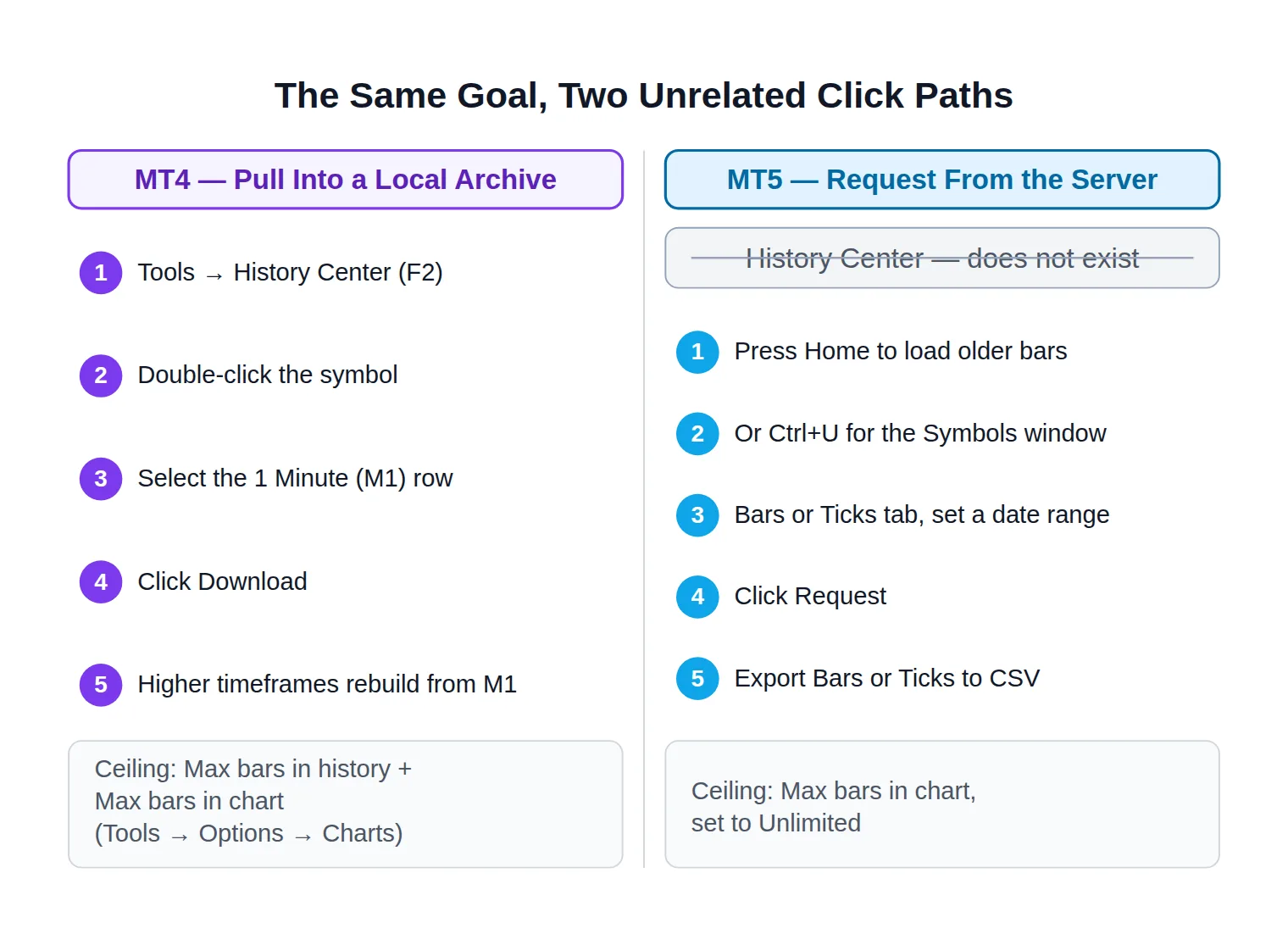
Follow an MT4 guide on MetaTrader 5 and you will hunt the Tools menu for a window that was removed years ago. MT5 has no History Center. It manages price history per trading server in the background and gives you three ways to force its hand:
Scroll the chart back. Open the chart, press the Home key to jump to its earliest loaded bar, and MT5 requests the next block from Alpari automatically. Repeat until the start date stops moving — that point is the real edge of what the server holds.
Use the Symbols window. Press Ctrl+U (or View → Symbols), select the Alpari symbol, open the Bars tab for minute data or the Ticks tab for tick data, set a start and end date, and click Request. The platform downloads the range and shows it as a table; Export Bars or Export Ticks then writes it to a CSV you can keep, move to another machine, or feed into an external tool.
Let the tester fetch it. MT5's Strategy Tester requests any history it is missing when you start a run. Convenient, but it hides the gap: the run completes on whatever the server had, without announcing what it could not get.
MT5's equivalent of the bar ceiling is a single dropdown — Tools → Options → Charts → Max bars in chart — and it offers an Unlimited setting. Choose it before you start, then restart the terminal.
The same goal, two unrelated click paths — following MT4 instructions on MT5 stalls at a window that was removed.
The practical consequence of the split is worth stating plainly: on MT4 you pull history into a local archive and can overwrite it; on MT5 you request history that the platform manages for you, and, as the import section below shows, you cannot overwrite a broker symbol's data at all.
Why Does Alpari's Built-In History Look So Short?
Once your limits are raised and the download still ends early, the shortfall is on the server side, and there are four ordinary reasons for it.
Depth varies by symbol. Major currency pairs generally carry the deepest archives. Exotic crosses, metals and index CFDs commonly start far more recently, because the broker only holds history from when it began quoting that instrument on that platform. One pair reaching back years while another starts last spring is normal, not a fault.
MT5 servers are younger than MT4 servers. A broker's MT5 data feed archive typically begins when that platform was introduced, so the same symbol can hold noticeably more history on MT4 than on MT5 at the same broker.
The old website route is gone. Traders who remember downloading zipped history archives directly from Alpari's site are remembering something real that no longer exists. That option was retired, which leaves the terminal itself as the only first-party path to Alpari history data for MetaTrader today — and it is why so many search results for it are years-old forum threads.
"No more data available for symbol" is a server answer, not an error. It means the history server has reached the end of what it stores for that instrument. Clicking Download again, deleting your .hst files, or reinstalling changes nothing. One thing that occasionally does help on MT4: a very old terminal build can fail to load a symbol's history at all, so update the platform before concluding the data is missing. Every instrument has its own archive depth on the broker's server — and no amount of re-downloading makes a shallow one deeper.
At that point you have two honest choices — shorten the test window to what the broker actually holds, or bring your own data.
How to Import External Historical Data Into MT4 and MT5
Importing solves the depth problem, and it is where the two platforms diverge most sharply. MT4 lets you write straight into a broker symbol's archive. MT5 does not, and forces a cleaner but longer path.
MT4: The Import Button in History Center
MT4 expects one bar per line in a fixed column order — Date, Time, Open, High, Low, Close, Volume — and it is fussy about everything else.
MT4 import
Importing a CSV into MT4's History Center
1
Prepare the file, not in a spreadsheet
One bar per line, columns in MT4's order. Opening a minute file in Excel rewrites the date format and rounds prices.
2
Open History Center on the M1 row
Press F2, double-click the Alpari symbol, select 1 Minute, then click Import and choose your file.
3
Set Separator and Skip lines
Pick the character that splits the columns — commonly a semicolon or a comma — and skip any header rows at the top of the file.
4
Set the Time shift
Shift the file's timestamps onto the Alpari server clock, or every session and news filter in your EA fires at the wrong hour.
5
Import, restart, verify
Reopen the chart and confirm the new start date, then keep the terminal disconnected while testing so a sync cannot overwrite it.
Four of these five steps are places a silent failure hides — a wrong separator imports zero bars, a wrong time shift imports the wrong session.
Two details deserve emphasis. The Separator setting has to match the file byte for byte: many MetaTrader-ready exports are semicolon-delimited rather than comma-delimited, and choosing the wrong one imports zero bars without an error message. The Time shift field is not cosmetic: broker server clocks usually sit a few hours off UTC, and most public data files are published in UTC or in New York time. Compare a known bar — the daily open on a recent Monday, say — between your Alpari chart and the file, and shift by the difference. Get it wrong and your strategy's hours are wrong, which quietly changes every result.
And import into M1, then let MT4 rebuild the higher timeframes rather than importing each timeframe separately. Mixed sources across timeframes produce a chart that disagrees with itself.
MT5: Import Into a Custom Symbol
MT5 protects broker data — you cannot overwrite Alpari's history for EURUSD. Instead you create a parallel instrument:
Right-click in Market Watch → Symbols, then Create Custom Symbol. Use Copy from to clone the Alpari symbol so digits, contract size, tick value and margin settings match.
Open the new symbol's specification and go to its Bars or Ticks tab.
Click Import, pick your file, and set the separator, skipped rows and hour shift exactly as you would in MT4.
Run the Strategy Tester against the custom symbol rather than the broker one.
Two traps live here. First, MT5 wipes a custom symbol's imported history when you later change its tick size, tick value, chart mode or digits — so finish the specification before importing, not after. Second, a cloned symbol does not automatically inherit a realistic cost model; if swap and commission settings are left blank, your test runs cheaper than reality and every marginal strategy looks profitable.
As for where files come from: MT5's own Export Bars output is the cleanest source, because it is already in the broker's own price scale and can be carried between terminals. Beyond that, free tick archives published by data-focused brokers such as Dukascopy cover far more years than most retail history servers, and third-party converters turn them into MT4 and MT5 import files. Treat that as an optional upgrade for strategies that genuinely need the depth, not a required step.
Understanding Modelling Quality Before You Trust a Backtest
Getting the data in is the easy half. The harder question is what the tester does with it between bars — because your EA reacts to ticks, and a minute bar contains only four prices.
MT4 prints its answer as modelling quality at the top of every report. Run "Every tick" on downloaded M1 data and that figure tops out around 90%, and that ceiling is structural rather than a sign that something went wrong: MT4 has real open, high, low and close values for each minute and generates the tick path between them. The remaining fraction is the platform admitting it invented the route price took inside each bar.
What the report is admitting
0100
90%
MT4 modelling quality on downloaded M1 data
Control points only
Partly interpolated
Every tick from M1 bars
Real stored ticks
The ceiling is not a data error. It is MT4 telling you it reconstructed the price path inside each minute rather than replaying it.
MT5 handles the same problem differently. Instead of one headline figure it gives you the modelling mode, and only Every tick based on real ticks replays stored ticks rather than synthesising them — which works only if the tick history is actually downloaded for the period you are testing. Its other modes, right down to open prices only, trade fidelity for speed exactly as MT4's do.
Whether that matters depends entirely on your strategy:
Wide stops, higher timeframes, few trades. Interpolated ticks rarely change the outcome, because entries and exits sit far from the noise inside a bar. A bar-accurate run is usually enough.
Scalping, tight stops, grid or martingale logic, anything triggering intrabar. The invented path is the result. Whether the generated tick sequence touched your stop before your target decides the trade, and the report becomes a story rather than a record.
Modelling quality also says nothing about costs. The tester applies the current spread — or a fixed one you specify — across the whole history and models no slippage at all, so a strategy whose edge is thinner than its execution costs can still show a rising equity curve. That is why a clean backtest is a filter, not a verdict.
Treat a good report as permission to keep going, not as evidence. The next step is a forward test on a demo account running the same rules against live pricing, and our risk warning sets out what any backtested result can and cannot tell you about future trading.
Before You Test Live: Sanity-Checking a Strategy Against Real Conditions
Once you know the modelling-quality ceiling of your own run, the useful next question stops being "how do I get more data" and becomes "does this logic still read the same way in a live market?" That check needs current conditions, not a deeper archive.
One way to do it without risking anything is to watch a live feed alongside your tested rules and see whether the setups your expert advisor would have taken are the ones actually forming. Our free Forex live signals publish entries with the same reward-to-risk framing you read off a Strategy Tester report — direction, entry, stop and target — so you can compare a backtested setup against what the market is doing today before committing capital to it.
To be clear about what it is not: a signal feed is not a dataset, it cannot be loaded into the Strategy Tester, and it does not replace the pipeline in this article. If you are building or refining your own EA, the download and import work above is still the job. The feed is a reality check running next to it, not a substitute for it.
Quick Checklist Before You Trust the Backtest
The trap this whole process exists to avoid is subtle: a test that runs cleanly, produces a smooth equity curve, and quietly covered eleven months of one market regime on interpolated ticks. Run through this before you read a single result.
Before you read the numbers
Data sanity check before you read the report
0 / 8
The chart's earliest bar actually precedes your test start date — confirmed by eye, not assumed.
Max bars in history and max bars in chart are raised, and the terminal was restarted afterwards (MT4), or max bars in chart is set to Unlimited (MT5).
You downloaded M1 data, not just the timeframe you are testing on.
The symbol you tested carries the exact suffix your Alpari account trades.
The modelling quality figure or MT5 modelling mode is noted next to the result, not ignored.
The test window spans more than one market regime — a trend, a range and at least one high-volatility stretch.
Spread, swap and commission settings reflect your real account rather than the tester's defaults.
If you imported a file, the time shift was verified against a known bar on an Alpari chart.
★
Checklist complete — you’re cleared to proceed.
Every unticked line is a way a good-looking report can be describing a market that never existed.
Where you started was a tester that finished in four seconds. Where you should end is a run whose date range, bar source and modelling mode you can each state out loud. That is not a guarantee the strategy works — nothing about a reconstruction of the past is — but it does mean the result describes something real, which is the minimum a backtest has to clear before it earns any weight in a live decision.
FAQ
Where does MT4 store the Alpari history it downloads?
In the terminal's own data folder, under a history directory containing a subfolder named after the Alpari server you are logged into, with one .hst file per symbol and timeframe. Open it via File → Open Data Folder rather than guessing at the path, because a portable installation and a standard one live in completely different places. Backing up that folder before a large import is a two-second insurance policy.
Why does my downloaded history disappear after I restart MT4?
Almost always the bar limits. If max bars in history is lower than the number of bars you downloaded, MT4 keeps only the most recent portion when it loads the archive at startup — the data was written, then trimmed. Raise both limits, restart, and download again in that order. The other cause is a server sync overwriting imported data, which is why testing on imported history is best done with the terminal disconnected.
Can I use MT4 history files in MT5?
Not directly. MT4's .hst format is not readable by MT5, and MT5 will not let you write into a broker symbol's history in any case. The workable route is to export what you need as CSV and import it into an MT5 custom symbol, or to download afresh from the Alpari MT5 server via the Symbols window. Expect the two platforms to disagree slightly even on the same instrument, since they are fed by different servers.
Do I really need tick data, or is minute data enough?
It depends on where your stops sit relative to intrabar noise. Strategies holding for hours or days with stops well outside a minute's range are usually judged fairly on M1-based modelling. Anything that scalps, uses stops of a few pips, adds to positions inside a bar, or relies on a specific fill sequence needs real ticks — otherwise you are testing the platform's guess about price movement rather than price movement.
Does an Alpari demo account have the same history as a live account?
Not necessarily. Demo and live accounts may sit on different servers, and each server maintains its own history depth and its own symbol list with its own suffixes. If a backtest on demo data will inform live trading, check the depth on the server you actually intend to trade, and compare the symbol specifications too — digits, contract size and swap settings all feed into the result.
Why does the Strategy Tester show fewer bars than History Center?
Because the two read different ceilings. History Center reports what is stored on disk, while the tester works from what the terminal loads into the chart, which max bars in chart limits. A test starting later than your archive does is the classic symptom. Raise the chart ceiling as well as the history one, restart, and confirm the start date on the chart itself before you run anything you intend to act on.
Sources & Further Reading
Want to go deeper? These independent, authoritative sources shaped this guide — each one is worth reading in full:
The Binary Options Desk is the SignalBots editorial team for fixed-time and OTC trading coverage. We research and write the guides that explain expiry timing, payout structure and disciplined entry across the major brokers.




Discussions 0
Leave a comment