You went looking for a program: an installer, a setup wizard, an icon on your desktop that trades Olymp Trade while you get on with your day. What you found instead was a Chrome Web Store listing, an Android app advertised "on PC", and a stack of pages that never say plainly where the software actually runs.
That gap is the whole problem. On Olymp Trade, auto-trading software almost never means a Windows program that talks to your account. It means one of three or four very different architectures, and the one you pick decides how you install it, what it can reach, and what happens the moment you close a tab. This page sorts the real options by where they run, characterizes each honestly, and points you at the one that fits your machine.
Key Takeaways
Olymp Trade ships a desktop terminal for Windows and macOS, but it is manual only — no expert-advisor slot, no strategy tester, no trade-placement API for third parties.
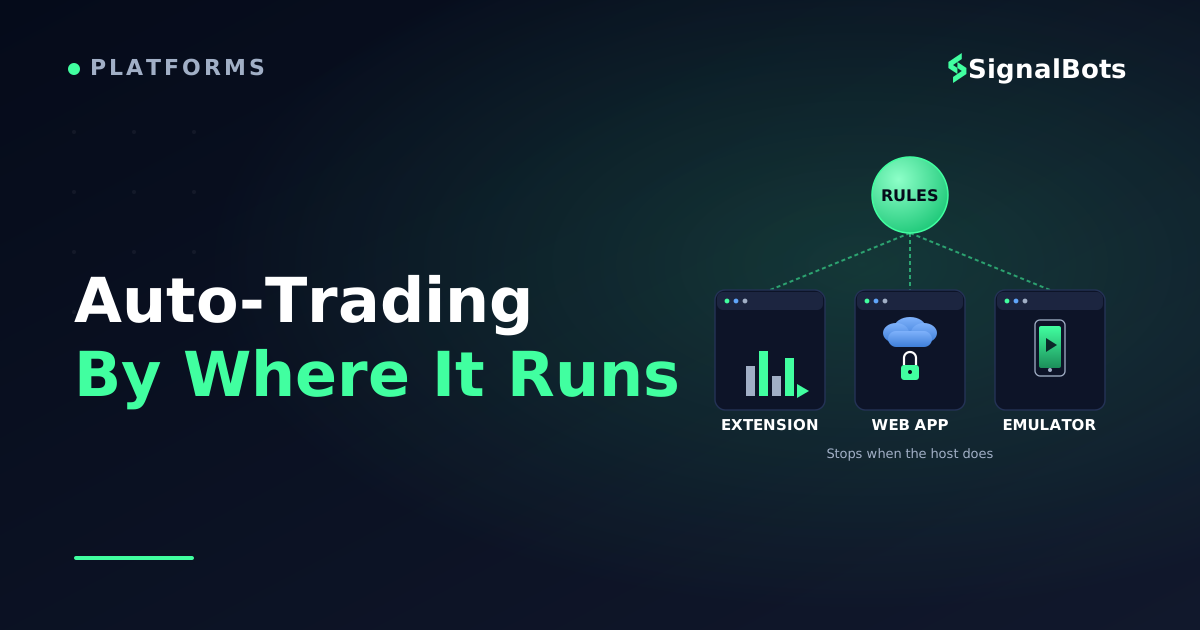
Every real auto-trading option attaches from outside: a Chrome extension driving the web platform, an account-bound web app, or an Android robot run through a Windows emulator.
Pick by architecture first — what you are willing to install decides your shortlist faster than any feature list does.
Every tool here is independent and unaffiliated with Olymp Trade, so a demo session before funding is the cheapest check you can run.
Table of Contents (20 min read)Contents
What "Auto-Trading Software" Really Means on Olymp Trade
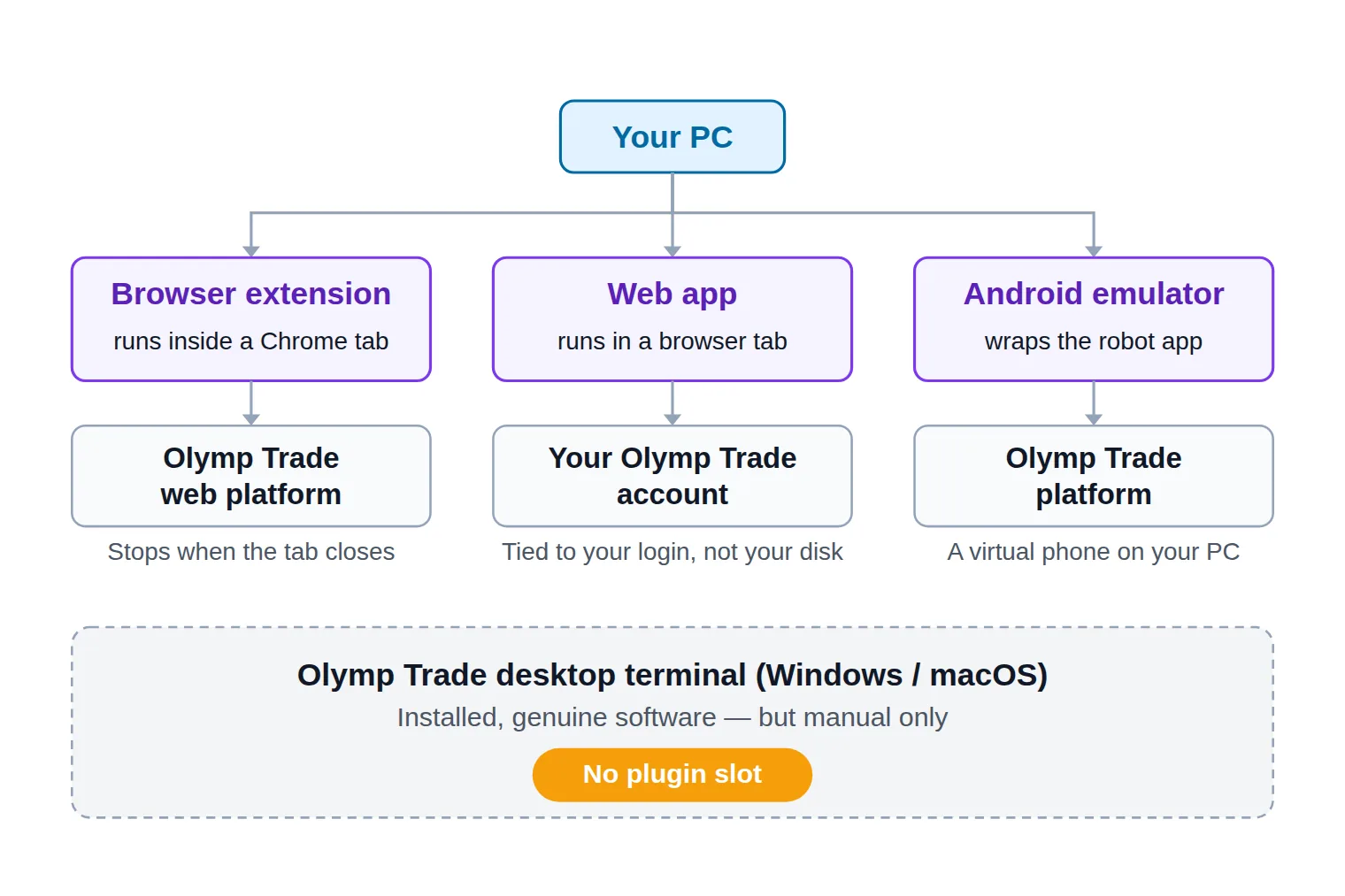
A browser extension. It installs into Chrome, sits on top of the web platform, reads the chart the platform is already drawing, and clicks the ticket for you. This is broker page automation in the literal sense: the tool operates the page you have open, exactly as you would.
An account-bound web app. A separate product with its own login. You connect your Olymp Trade account to it, and its analysis runs on the vendor's side rather than in your browser's memory. Access is tied to your account, not to a file on your disk.
An Android app running under an emulator. The tool was built for phones. An emulator such as GameLoop or BlueStacks gives it a Windows window, which is close to sideloading an APK onto a virtual phone that happens to live on your desktop.
Your own script. A handful of community Python wrappers talk to the platform directly. That is not software you install, it is a project you maintain, and it belongs in its own guide.
Three of those four are what people mean when they search for auto trading software for Olymp Trade. Only one of them — the emulator route — puts a window on your taskbar, and even then the thing inside the window is a phone app.
Three ways automation reaches Olymp Trade — and the one piece of installed software none of them can use.
A binary options bot built on any of these paths inherits the limits of its host. An extension stops when the tab stops. A web app keeps its own schedule but keeps its own secrets too. An emulator runs until you close it, at the cost of a second operating system idling on your machine.
Does Olymp Trade Have a Native PC Auto-Trading App?
It has a native PC app. It does not have a native PC auto-trading app — and that one-word difference is what sends people in circles.
Olymp Trade publishes its own desktop terminal for Windows and macOS, and it is a genuine installed application rather than a browser shortcut. But it is a manual terminal. There is no slot for an expert advisor the way MT4 and MT5 have one, no strategy tester, and no documented trade-placement API a third-party developer could build against. Nothing you download from an independent developer plugs into that terminal.
The practical consequence is simple: every third-party robot targets the web platform in a browser or the Android app, because those are the only two surfaces reachable from outside. If you install the official desktop client expecting a robot marketplace, you will find charts and an order panel — which is the point of it.
Two different pieces of software
Olymp Trade's desktop terminal vs a third-party robot
Official desktop terminal
A real installed application for Windows and macOS, published by Olymp Trade itself
Charts, order panel and account tools — every one of them driven by your clicks
No expert-advisor slot, no strategy tester, no documented trade-placement API
Nothing third-party attaches to it, by design
The natural home for manual trading — and a dead end for automation
VS
Third-party auto-trading tool
Attaches from outside: a browser extension, a web app, or an Android app on an emulator
Built and supported by independent developers, never by Olymp Trade
Can read the market and act on it while you are away from the screen
Runs only as long as its host — the tab, the service or the emulator — stays alive
Where automation actually lives, with third-party trust as the price
The .exe Olymp Trade ships and the robot you are hunting for are not the same product — and one cannot host the other.
That is also why a search for an Olymp Trade robot for PC returns extension listings and emulator pages instead of a download button on the platform's own site. The listings are not hiding a desktop build. There isn't one.
The Auto-Trading Software Picks for PC and Browser
Four routes are genuinely in use, and the honest way to rank them is by where they run rather than by whose marketing sounds best. None of them is built, reviewed or endorsed by Olymp Trade — each says so on its own page, and you should read that as a statement of fact rather than boilerplate.
The shortlist
Route
Where it runs
Access model
What it actually does
Who makes it
Olymp Robot — browser extension
Chrome and Chromium browsers, any OS
Free, no ads
Cloud analysis across a broad indicator set, acting on the platform tab you have open
Free sign-up and demo; live trading needs a funded account
Opens trades itself from its own candlestick analysis
Tradematix LLC, independent
Olymp Robot app on GameLoop
Windows, inside an Android emulator
Free app and free emulator, heavy install
Indicator-condition bot with stop-loss and take-profit settings and a practice mode
rTech, independent
Community Python API wrappers
Any OS, from a script you run yourself
Open source; you maintain it
Exactly what you write, and nothing you didn't
Unofficial community projects
Sorted by where the software lives — the axis that decides how you install it and when it stops working.
Browser-Extension Picks (Chrome and Chromium Browsers)
Olymp Robot – Trading tool for Olymp Trade is the option most people land on first. It is published on the Chrome Web Store by an independent team, distributed free and without ads, translated into a long list of languages, and it leans on a cloud analysis service that scores the market across a wide indicator set rather than doing everything inside your browser. Its own listing states plainly that it is not related to Olymp Trade and is made by independent developers.
Two details decide whether it fits you. The first is browser reach: a Chrome Web Store listing installs on Chrome and the Chromium family — Edge, Brave, Opera — but Firefox and Safari run separate add-on stores, so a Chrome-only tool will not appear there. Check for a real Firefox build before you assume cross-browser support.
The second is what the extension is allowed to touch. Anything that reads a trading page and clicks inside it needs broad extension permissions on that site — read and write access to the pages you have open on the platform's domain. That is not automatically sinister; it is the only way page automation can work. It does mean the review screen deserves a real read rather than a reflexive "Add".
The last thing to verify is the one product pages are vaguest about: whether the tool places trades or merely marks up the chart and waits for you. Watch it on a practice balance for a session and you will know in twenty minutes what no listing will tell you.
Account-Bound Web Apps
Olymp Matix, operated by Tradematix LLC, takes the opposite approach: nothing installs at all. You register inside the product, it gives you a demo balance of virtual funds to watch it work, and going live requires a funded Olymp Trade account. It runs in a browser tab on Windows, macOS or Linux and ships iOS and Android apps alongside — so its "PC support" is a browser tab, not an installer. The site states it was created by an independent team and is not directly related to the platform. Its stated job is to open trades on its own reading of candlestick structure, not to hand you a signal and step back.
Because entitlement follows your login rather than a file on your disk, this is the account-bound license model. That is convenient — sign in from a different machine and your setup is there — and it is also the trade-off: you cannot inspect what the service does, you cannot run it offline, and if the vendor's side goes quiet your automation goes quiet with it.
Android-App-on-PC Picks (via Emulator)
The Olymp Robot Android app run through GameLoop is what actually satisfies the phrase Olymp Trade robot PC. rTech's mobile app is an indicator-condition bot — the familiar RSI, stochastic and MACD family, plus stop-loss and take-profit behaviour and a simulated account to try settings on — and GameLoop wraps it in a resizable Windows window. The emulator listing carries the same disclaimer as everything else here: the app is not affiliated with the Olymp Trade platform, and it is built for that platform only.
Price the route honestly before you commit to it. You are not installing one program, you are installing two: a full Android environment plus the robot inside it, each with its own updates and its own developer to trust. Emulators are Windows-first and hungry — the published requirements read like a gaming machine's, not an office laptop's — so on a Mac or a thin ultrabook this route is the wrong one before you even start. What it buys you is the desktop-app feel you were originally searching for. What it does not buy you is a native Windows trading client, because that is still an Android app in a costume.
The fourth route deserves one paragraph and no more. Community Python wrappers let you script against the platform directly, which is the only path that gives you full control of entry logic. They are unofficial, unsupported, and can break the day the platform changes something on its side; if you want to build your own Olymp Trade bot in Python, that is a project with its own guide rather than a pick you install.
Which Option Fits Your Setup?
The ranking flips depending on your machine and your appetite for installs, so read this as three answers rather than one.
Which Olymp Trade automation route fits your machine?
Take itProceed with careSkip / stand aside
Start from what you are willing to install — it eliminates two of the three routes immediately.
If you want zero installs, the account-bound web app wins by default, and the extension is a close second because it is a click rather than a download. Both keep your machine clean and both stop being your problem the moment you sign out.
If you specifically want a window on your taskbar — the thing you were searching for when you typed robot PC — the emulator route is the only one that delivers it, and it is worth it only on a Windows machine with headroom. On anything else the tax is real and the benefit is cosmetic.
If you want control over the conditions themselves, compare the depth of the settings screen, not the length of the feature list. The emulator app exposes indicator conditions and exit rules directly; the extension delegates that judgment to its cloud service; the scripting route hands you everything and asks you to build it.
Before You Install: Independent Developers, Demo Accounts and Next Steps
Every tool named on this page is third-party. Not one of them is built, audited or endorsed by Olymp Trade, and all of them say so on their own listings. That is not a scandal — it is the normal shape of this market — but it does mean there is no platform support desk when a robot misfires, and no one to appeal to about a trade you did not intend. Before installing anything, work through the red flags that separate a working Olymp Trade robot from a scam; that check is a job of its own and lives in its own guide.
Then de-risk the choice itself, which costs nothing:
Run it on a demo account first. A practice balance answers in one session what no product page will: whether it truly places trades or only annotates the chart, how often it fires, whether it survives a browser restart, and whether you can stand watching it work.
Read performance claims as claims. A headline win rate means one thing if it is a backtested result and something else entirely if it was observed live, and a tool that never says which is telling you something. Any bot's win rate also has to clear the payout maths before it is worth running at all — the break-even win rate calculator shows the bar your payout percentage sets.
Check what it can reach. Extension permissions, account connections and license bindings are all worth understanding before you grant them, not after.
Decide your budget honestly. Several of these tools are free, and free tiers come with real limits worth knowing before you build a routine around one; if cost is the deciding factor for you, the free Olymp Trade bots comparison goes deeper than this page does. When you have picked a tool, the step-by-step setup guide takes over from here.
If You'd Rather Work Inside MT5
There is one more software category worth knowing about before you settle, and it sits outside the browser entirely. Our Binary Options MT4/MT5 connector renders the Olymp Trade OTC chart inside your MetaTrader 5 terminal and delivers a CALL, PUT or NO-TRADE read there — no Chrome extension to permission, no Android emulator to feed.
Concretely: you keep MT5 open the way you already do, the OTC symbol streams into a normal chart window, and the signal arrives on that chart rather than on a web page you have to leave open. If you already live in a MT4/MT5 connector workflow, that is a cleaner install path than either an extension or a second operating system.
Be clear about what it is not: it delivers the read, and you still place the trade yourself. It is a signal-delivery connector, not a hands-off execution engine, and it is not a drop-in replacement for an Olymp Trade-specific auto-trading extension. If what you actually want is trades placed without your action, weigh the picks above first — this route is for the reader who is already comfortable working inside MetaTrader and wants the analysis to come to them.
Wrapping Up: Choosing Your Auto-Trading Setup
The search that brought you here assumed a program you install. The honest answer is that on Olymp Trade there is one — Olymp Trade's own manual terminal — and it is the one piece of software that cannot automate anything. Automation lives one layer out: in a Chrome extension driving the web platform, in an account-bound web app that trades on your behalf, or in an Android robot wearing an emulator as a desktop app.
So pick by architecture, not by promises. Decide first whether you will install nothing, a browser extension, or a whole second operating system; that single choice narrows four options to one. Then spend a demo session with whatever you chose before a cent of real balance is involved. The tool that survives that session honestly is the right auto trading software for your Olymp Trade account — and the one that cannot explain itself on a practice balance was never going to explain itself on a live one.
Partly, and only through third-party software. The platform itself has no built-in robot, no strategy tester and no plugin slot, so full automation means handing the job to an outside tool that either drives the web page for you or connects to your account from its own service. Every one of those tools depends on staying alive — a closed tab, a signed-out session or a stopped emulator ends the automation without warning, which is why unattended running deserves testing before you rely on it.
Is there an official Olymp Trade robot or API?
No. There is an official desktop terminal for Windows and macOS and official mobile apps, all of them manual, and there is no published trade-placement API for developers to build against. The Python wrappers you will find are community projects that reverse-engineer the platform's own traffic — unofficial, unsupported, and liable to break when the platform changes something.
Does Olymp Trade auto-trading software work on a Mac?
The browser-based routes do. A Chrome extension installs the same way on macOS as it does on Windows, and an account-bound web app does not care what your operating system is. The emulator route is where Mac users hit the wall: Android emulators of the GameLoop type are Windows-first, so if you want a windowed robot on a Mac you are choosing between a browser tab and nothing.
Will an auto-trading tool keep trading after I close my laptop?
That depends entirely on which architecture you picked, and it is the question most product pages dodge. An extension lives in your browser, so closing the tab, quitting Chrome or letting the machine sleep stops it. An emulator app stops when the emulator stops. Only a service that runs on the vendor's own infrastructure can continue while your machine is off — and that is precisely the setup where you can see the least about what it is doing.
Do I need to pay for Olymp Trade auto-trading software?
Not to get started. The best-known Chrome extension is distributed free without ads, the emulator and the Android app are free downloads, and the web-app route lets you sign up and run a demo balance before any money is involved. What costs money is trading itself: live use of any of these tools requires a funded Olymp Trade account, and a free tool losing real stakes is not cheaper than a paid one.
Sources & Further Reading
Want to go deeper? These independent, authoritative sources shaped this guide — each one is worth reading in full:
The Binary Options Desk is the SignalBots editorial team for fixed-time and OTC trading coverage. We research and write the guides that explain expiry timing, payout structure and disciplined entry across the major brokers.


Discussions 0
Leave a comment