The robot is installed. There is a panel sitting on top of your Olymp Trade chart with eight or nine fields in it, a dropdown you do not recognise, and a green Start button. Nothing on the screen tells you what happens to your balance when you press it.
That is the real gap in almost every robot's documentation. The product page explains why you should install it; the settings screen assumes you already know what "expiry", "aggressiveness" and "confidence filter" do to your money. This guide is the missing middle: the full sequence from an unopened installer to a supervised first live trade, written so it holds whether your tool is a browser extension, a desktop app, or a connector that trades signals coming from somewhere else.
One thing this guide deliberately does not do is tell you which robot to install. If you are still choosing between Olymp Trade auto-trading software options, or looking at the free Olymp Trade bots floating around, that decision belongs elsewhere — and it is worth checking whether a specific robot is legitimate before you install anything at all. Come back here once the file is downloaded.
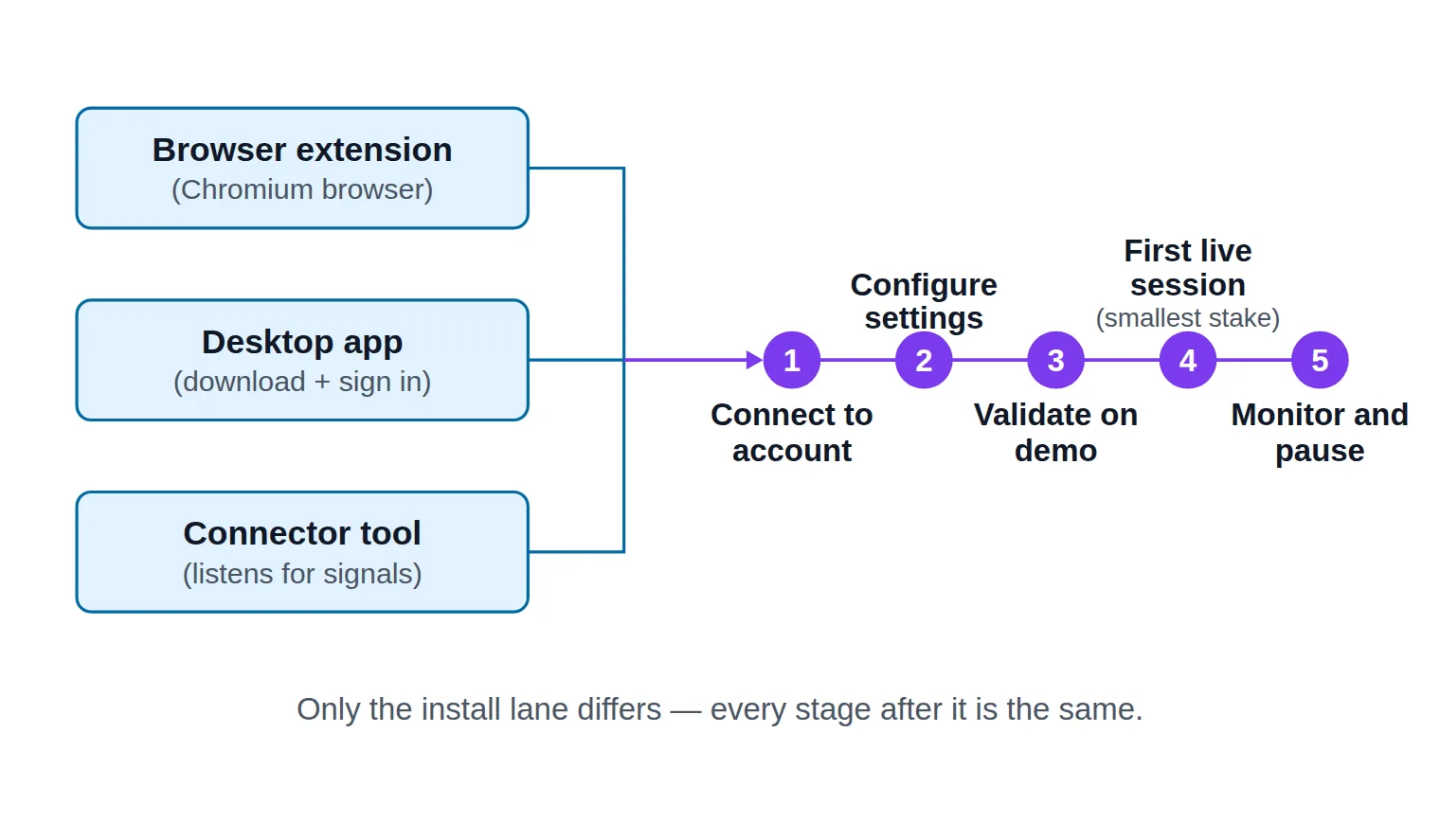
Three install paths, one procedure — the sequence this guide follows regardless of which robot you ended up with.
Key Takeaways
The install path differs — browser extension, desktop app or signal connector — but everything after it is one sequence: connect, configure, validate on demo, then go live small.
Most Olymp Trade robots need no API key: extensions ride the browser session you are already logged into, and any tool asking for your password is a deliberate trust decision.
Set stake, expiry and stop conditions before the first live trade, and turn off any option that raises the stake after a loss.
A demo run proves the machinery obeys your settings, not that the strategy has an edge — judge obedience first, and treat the platform's trade history as the source of truth.
Table of Contents (26 min read)Contents
What You Need Before You Install an Olymp Trade Robot
Half the failures people blame on the robot happen before the robot ever runs. Clear these six things first and the install itself becomes uneventful.
An Olymp Trade account you can log into in the browser or app you plan to automate. If the platform asks you for verification documents halfway through your first live session, the robot keeps trying to trade into a locked account.
A working practice balance. Every serious tool supports a demo account, and you will not skip that step later, so confirm now that your practice balance is topped up and that you can switch to it.
The right environment for your install path. Extension robots need a Chromium-based browser — Chrome, Edge, Brave — kept up to date. Many desktop robots ship a Windows installer only, so check before you download rather than after.
A machine that stays awake. A robot only trades while its tab or its window is running. A laptop that suspends, a browser that discards a background tab, or a phone that locks will stop the sequence mid-session — and possibly mid-trade.
Your own rules, written down before the settings screen. Decide the cash amount you will risk per trade, the amount that ends your day, and the trade length you are willing to hold. Deciding these while a live panel blinks at you is how people end up doubling stakes at 2 a.m.
A quick legitimacy check on the tool itself. Look at who publishes it, what permissions it asks for, and how it talks about outcomes — a page promising "risk-free" results is telling you about its marketing rather than its math. That check deserves its own careful read before you install.
None of this is busywork. Each item removes one of the failure modes in the troubleshooting section further down.
How to Install an Olymp Trade Robot: The Two Common Paths
Robots for Olymp Trade come in two install shapes, and the shape you pick decides how the tool reaches the platform later. Get the install right and the connect step is nearly automatic.
Path A — Installing a Browser Extension
A trading browser extension is the most common form an Olymp Trade robot takes, because the platform runs in the browser and the extension can work directly inside it.
Open the listing in your browser's own store — the Chrome Web Store, the Edge Add-ons site, or Firefox Add-ons. Reaching an extension through a download site or a forwarded ZIP file is how people end up installing something with a similar name and a different owner.
Read the publisher line, the review dates and the last-updated date. Olymp Trade's interface changes; an extension that has not been updated in a long time is a candidate for the "it stopped working overnight" problem.
Click Add to browser and read the permission prompt instead of dismissing it. The prompt is a plain list of what the tool may do — typically read and change data on the trading site's pages. Understanding extension permissions here is the only chance you get to judge that grant.
Pin the extension to the toolbar so you always know whether it is on, and which window it belongs to.
Open Olymp Trade in a fresh tab and log in. Most extension robots detect the platform tab and dock their control panel into it. If the panel does not appear, refresh the page once before touching anything else.
Do not press Start. The panel appearing means the software loaded, not that it is configured. Configuration comes two sections from now.
Worth knowing what is happening underneath: extension robots generally place orders through auto-click trading — they fill in and submit the platform's own trade ticket, exactly as your hand would. That is why the Olymp Trade tab has to stay open, and why a platform layout change can break a robot that was working yesterday.
Path B — Installing a Desktop or Standalone App
A desktop robot is a separate program with its own window, its own price feed, and its own login to the platform.
Download only from the developer's own domain, and check the URL character by character. Mirrors and download aggregators repackage installers.
Expect an operating-system warning on first run for a small, unsigned publisher. That warning is information, not permission — if you cannot identify the publisher, stop there.
Install into a normal user folder, and decline any bundled extras the installer offers.
Launch it once before connecting anything and look at the interface cold: find the account field, the settings panel, the start/stop control and the trade log. Locating the stop control before your first trade is not paranoia, it is the ordinary discipline of running algorithmic trading software on a real balance.
There is a third variant you may meet: a connector-style tool that does not analyse anything itself but listens to an outside feed — a Telegram channel, a webhook, an alert stream — and turns each incoming message into a trade. It installs like Path B, and everything in the rest of this guide applies to it unchanged, with one extra setting: where the signals come from. That setting gets its own section below.
Connecting the Robot to Your Olymp Trade Account
This is the step readers hesitate on, and rightly so. It is also the step where the marketing language is least helpful, because "connect your account" covers three very different arrangements.
Session-riding. The extension does not connect to anything — it operates inside the tab where you are already logged in. It never sees your password, and it holds no credential of its own. Log out, and the robot is inert.
Signing in on your behalf. A desktop or web tool shows you an Olymp Trade login form inside its own window. That form is not Olymp Trade. Whatever you type into it is now held by the developer's software, so treat it as the significant trust decision it is: enable two-factor authentication if your account offers it, never reuse a password you use anywhere else, and keep the funded balance modest while the tool is new to you.
Activation or licence codes. Many robots ask for a code, an account ID, or a broker ID during setup. That is usually an account-bound license — it unlocks the software for one user, and it grants the tool nothing extra on your trading account. Licensing and account access are separate things wearing similar-looking forms.
Installs as a browser extension and works inside the Olymp Trade tab you are already logged into
Never asks for your Olymp Trade email or password
Places trades by driving the platform's own controls, so the tab has to stay open
Stops the moment you log out, close the tab, or the platform ships a layout change
Least account exposure — the sensible default while you are learning.
VS
Signs in on your behalf
A desktop or web tool that asks for your Olymp Trade credentials in its own window
Can keep running without an Olymp Trade tab open in front of you
You are handing account access to software you did not write
Turn on two-factor authentication if your account offers it, and never reuse the password
More convenient, and a far bigger trust decision — treat it as one.
The convenience of a tool that logs in for you is paid for in account exposure.
What About an API Key?
Several robot pages advertise "no API key required", which confuses more people than it reassures. Olymp Trade does not publish a documented retail trading broker API the way a crypto exchange does, so a consumer robot has nothing official to plug a key into — it either rides your browser session or signs in as you. The unofficial community libraries that talk to the platform directly are a different project entirely, and building your own Python bot on top of one is a separate undertaking with its own risks.
Whichever model your tool uses, finish the connect step with the same verification: the robot should now display your account balance, and it should display it matching the mode you are in. If the number on the robot's panel does not match the number on the platform, do not continue. Something is pointed at the wrong account.
Configuring the Robot's Key Trading Settings
Everything up to here was plumbing. This is where you decide what the robot actually does with your money, and it is the part competitor guides tend to skip with a screenshot and a shrug. The names differ between tools; the meanings do not.
Account mode. The demo/real account toggle decides whether an order hits virtual or real funds. Some robots read this from the platform; others hold their own copy of it, which can disagree with what the platform shows. Confirm both.
Trade amount. Your trade stake is the cash at risk on each position — and in fixed-time trading, a loss costs the whole stake. Most robots offer a fixed sum or a percentage of the balance. Both are fine; what is not fine is the neighbouring option, usually labelled "multiplier", "recovery" or "compensation", which raises the stake after a loss. That is the martingale strategy with a friendlier name, and it converts a normal losing run into an account-sized event. Leave it off. If you want to see what a given stake does to your balance across a run of trades, work it through with a binary options money-management calculator before you commit to a number.
Expiry / time period. The expiry time is how long each trade stays open, and it must agree with the timeframe the robot analyses. A tool reading five-minute candles and firing sixty-second trades will be right about direction and wrong about the clock — the most expensive silent misconfiguration on this list.
Asset filter. Choose the symbols the robot may trade, and keep the list short enough that you can watch them. Note that weekend availability comes from the OTC market, where price behaviour and payouts can differ from the same symbol on a weekday. Do not let your first live session be on a symbol you have never charted.
Payout floor. The payout percentage determines what a win returns, and therefore how often the robot has to be right to break even. Suppose a trade pays 80% — winners return 80 cents on the dollar while losers cost the full dollar, so the strategy needs a win rate above roughly 56% just to stand still. Raise a payout floor, never lower it, and you can check the arithmetic for your own numbers with a break-even win rate calculator.
Confidence or win-rate filter. This setting asks the robot to skip setups its own scoring rates below a threshold. Read what it actually filters on: a historical win rate describes how a pattern behaved in past data, not how the next trade will resolve. Start strict. Loosening the filter reliably buys you more trades; it does not buy you better ones.
Strategy mode. Conservative and aggressive presets are, underneath, the same two dials you have already met — how strict the entry filter is, and how many trades per hour the robot is allowed. An aggressive preset is not a smarter algorithm, it is a looser one.
Stop conditions. The most important block on the screen, and the one most often left blank. Set a daily loss limit so the session ends at a number you chose; set a maximum trade count; and if the tool offers a cooldown period after consecutive losses, turn it on. Finally, learn where the kill switch is — the one control that stops everything now — before you need it in a hurry.
One honest note on framing: fixed-time trades do not have a stop-loss and take-profit the way a forex position does. The payout structure fixes the reward-to-risk ratio of every trade in advance, so on Olymp Trade "risk management" means stake size, trade count and daily stops — not stop placement.
Recommended Starter Values for Beginners
These are deliberately conservative starting points, chosen so that a misconfiguration costs you information rather than your balance. Tighten what you like once a demo run has actually shown you the robot's behaviour.
Starter configuration
Setting
What it controls
Beginner-safe start
What goes wrong if you overreach
Account mode
Whether orders hit virtual or real funds
Demo, until one clean full session passes
A live balance ends up funding your test run
Trade amount
Cash at risk on every single trade
The platform minimum, or about 1% of balance
A normal losing run becomes an account-sized one
Loss multiplier
Stake increase after a losing trade
Off — flat stake only
Stakes climb until the balance runs out
Expiry / time period
How long each trade stays open
Matched to the robot's own timeframe
Right direction, wrong clock — trades settle early
Asset filter
Which symbols the robot may trade
Two or three majors you already watch
Weekend OTC symbols you have never charted
Payout floor
Minimum payout before a trade is allowed
Leave the default, or raise it
Low-payout trades need a higher win rate to break even
Confidence filter
How strict the entry filter is
The strictest setting available
More trades pass, not better ones
Daily loss limit
Where the robot stops for the day
A sum that would not change your week
Nothing ends a bad session except your balance
Max trades per day
How long a session can run
Five to ten while you supervise
More trades than you can actually review
One settings reference that holds whether your robot is an extension, a desktop app or a connector — only the labels change.
Everything on this page that touches win rates or stake sizing is subject to the same caveat, which is why our risk warning is worth reading in full before the first live session rather than after it.
Should You Test on a Demo Account First?
Yes — and not as a formality. Running the robot on practice funds first is the only step in this procedure with no acceptable shortcut, because it is the only one that tells you whether what you configured is what the software is doing.
Be precise about what the demo run proves. A forward test on a practice balance validates the machinery, not the edge. Twenty trades tell you almost nothing about whether a strategy is profitable; they tell you almost everything about whether the tool obeys you. Judge obedience, and postpone judging profitability.
Watch for five specific behaviours across the session:
It places trades at all, without you clicking anything after Start.
Amount and expiry on each trade match what you set. Check this against the platform's own trade history, not the robot's internal log — the two can disagree, and the platform is the source of truth.
The filters actually filter. Long quiet stretches with no trades are usually the confidence filter or payout floor doing their job, not a fault.
The stop conditions fire. Temporarily set a very small daily loss limit and confirm the robot genuinely halts when it is hit. A stop you have never seen trigger is a stop you do not have.
A losing streak looks survivable. Three or four losses in a row will happen. Watch what your configured stake does to the practice balance when they do, because that is exactly what it will do to real funds.
Set a pass condition before you start: one full session, unattended settings, no surprises in the trade history. If any of the five fails, fix it on demo and run again. Also expect small differences between practice and live conditions — available symbols and payouts can differ between the two modes, so re-read your settings after you switch rather than assuming they carry across.
Moving to a Live Account Without Losing Control
The switch from practice to real money is one toggle, which is precisely why it deserves a deliberate gate rather than a click.
Fund only what your daily loss limit assumes. If your stop-for-the-day is a small figure, the account does not need to hold ten times that to start. The balance you deposit is not a target the robot is trying to reach; it is the maximum surface area of your first mistake.
Re-check every setting after the switch. Some tools keep separate configurations per mode, and a stake that was sensible against a practice balance may be a different percentage of your real one. Read the panel from top to bottom once more, as if it were a new install.
Reconcile the first live trade by hand. When the first order appears, open the Olymp Trade trade history and confirm the symbol, the amount and the expiry match what the robot claims it did. This one check catches nearly every configuration error that survived the demo run, and almost nobody does it.
Sit with the first session, whole. Not "check in occasionally" — watch it. You are looking for trades you did not expect, a trade count creeping past your cap, or the stake changing between trades.
Pause immediately if any of these appear: a trade you cannot explain, a stake that does not match the setting, the robot continuing past a limit it was supposed to respect, a dropped connection mid-session, or a software update that lands while it is running. None of these are reasons to abandon automation; all of them are reasons to stop, verify, and restart on demo if the answer is not obvious in a minute.
Go-live gate
Before you flip the robot to a live account
0 / 7
The robot completed one full demo session with the settings untouched
Amount and expiry on every demo trade matched the platform's own trade history
You have seen the daily loss limit actually stop the robot, not just seen the field filled in
The loss multiplier is off and the stake is the platform minimum or about 1% of the funded balance
You know where the robot's stop control is, and where the platform's own trade controls are
You have deposited only what your daily loss limit assumes you can lose
You can watch the entire first live session without leaving the screen
★
Checklist complete — you’re cleared to proceed.
Seven checks, all verifiable in under two minutes — the gate between a validated demo and a controlled first live run.
Troubleshooting: What to Do When the Robot Won't Trade
Most "broken robot" reports are not faults. They are the software doing exactly what it was configured to do, in a state the interface does not name clearly. Start by working out which state it is in.
stateDiagram-v2
    [*] --> Idle
    Idle --> Scanning: Auto-trade switched on
    Scanning --> Filtered: Payout or confidence filter rejects the setup
    Filtered --> Scanning: Next candle
    Scanning --> Armed: Setup passes every filter
    Armed --> InTrade: Stake placed at your expiry
    InTrade --> Settled: Expiry reached
    Settled --> Scanning: Still under the daily caps
    Settled --> Cooldown: Consecutive-loss limit hit
    Cooldown --> Scanning: Cooldown timer ends
    Settled --> Halted: Daily loss or trade cap reached
    Scanning --> Disconnected: Tab closed, app closed or session expired
    Disconnected --> Scanning: You log back in
    Halted --> Idle: You reset it for the next session
Filtered, Halted and Disconnected all look identical from outside: zero trades and a green Start button.
No trades at all. Work down the states above: is auto-trading actually enabled; is the market open for the symbols you selected; is the payout under your floor; has the daily cap or loss limit already triggered; is the confidence filter set to its strictest; is the robot pointed at the mode you think it is. In practice the answer is one of those six far more often than it is a bug.
The panel does not appear on the platform. Refresh the Olymp Trade tab first. Then check the extension is still enabled — browser updates disable extensions — and that you are on the same platform domain the tool expects. Ad-blockers and other extensions that modify pages can also suppress the injection; disable them one at a time on that tab.
Login or permission errors. Sessions expire, and logging in on a second device can end the first session. If the tool signs in on your behalf, a password change or a new two-factor prompt will stop it dead with a message that rarely explains itself. Log into the platform manually in the same browser, confirm the account is healthy, then restart the robot.
Trades fire, but not the ones you expected. Three usual causes: an expiry that does not match the analysed timeframe, a loss multiplier quietly raising the stake, or two copies of the robot running — a second Olymp Trade tab, or the extension and a desktop tool at once. Close everything, restart one instance, and reconcile against the platform history.
The connection drops mid-trade. An order that reached Olymp Trade belongs to the platform, and it settles at expiry whether or not your robot is watching. The risk is not the trade, it is the bookkeeping: on reconnect the robot may have lost the result, mis-count its daily loss total, and carry on trading past a limit you thought was enforced. After any disconnect, compare the platform's history against the robot's counters before restarting.
It worked yesterday and not today. For extension robots this is usually a platform interface update that moved the controls the tool clicks. Check for a robot update; if none exists and the developer is quiet, that is real information about the tool. The same reasoning applies to a stale signal arriving from an external feed: an instruction that is minutes old should not be traded at all, and a robot that acts on it anyway needs its timeout setting fixed.
Where Live Signals Can Feed Into Your Robot
If your robot is a connector — the third variant from the install section — one configuration slot stays empty until you fill it: the trade trigger. Instead of analysing price itself, the tool waits for an instruction from an outside signal provider and executes it with the parameters you already set.
A usable feed has to give you four things: the symbol, the direction (call or put), the trade length, and a timestamp fresh enough to act on. Those map straight onto the settings you configured earlier — the symbol has to be in your asset filter, and the trade length has to match your expiry, or the robot will faithfully execute a signal on the wrong clock.
Our own live binary options signals feed is free to view and can serve as one such external source: it publishes direction and timing per symbol, so you can read a signal, check it against the asset filter and expiry you set, and see how the translation from published signal to configured trade actually works. Two honest boundaries. First, it is a signal feed to read or point a compatible robot at — not an execution connector, and not a claim that any particular robot will integrate with it. Second, if your robot only accepts its own proprietary feed, its supported-sources list decides the matter, not us; check that list first. Readers comparing where free Olymp Trade signals or Telegram signal channels come from will find those questions answered on their own pages.
Quick Recap: From Install to Your First Live Trade
The whole of how to use an Olymp Trade robot compresses into eight moves, in this order:
Prepare — account accessible, practice balance ready, machine that stays awake, your own risk rules written down.
Install — from the browser's own store for an extension, or the developer's own domain for a desktop tool.
Connect — session-riding for extensions, a deliberate trust decision for anything that signs in as you, and no API key in either case.
Configure — stake, expiry, asset filter, payout floor, confidence filter, and above all the stop conditions.
Validate on demo — one full session, judged on obedience to your settings rather than on profit.
Gate — run the seven checks before the toggle moves.
Go live small — minimum stake, reconcile the first trade against the platform's history by hand, watch the whole session.
Diagnose by state — when it stops trading, find out whether it is filtering, halted, or disconnected before assuming it is broken.
Configure the robot's settings deliberately once and you rarely touch them again; rush them, and you spend every session guessing at what the software is doing. The reader who works through this sequence in order ends up with something more useful than an installed robot — a robot whose behaviour they can predict.
FAQ
Do I have to give an Olymp Trade robot my account password?
Not for a browser extension. That kind of robot works inside the Olymp Trade tab you are already logged into and never sees your credentials. Desktop and web tools that trade while you are away generally do ask you to sign in inside their own window, which hands account access to software you did not write. If you choose that route, enable two-factor authentication where the platform offers it, use a password you use nowhere else, and keep the funded balance small until the tool has earned more trust.
How long should I run the robot on demo before going live?
Long enough to see the five behaviours listed above at least once each — including a losing streak and a stop condition actually triggering. That is usually one to two full sessions rather than a fixed number of trades. Resist the temptation to extend the demo phase in the hope of proving profitability: a practice run is too small a sample for that, and its real job is confirming that the software does what you configured.
What happens to an open trade if my internet drops mid-trade?
The trade is already with Olymp Trade, so it settles at expiry regardless of whether your robot is connected. The problem is the robot's bookkeeping — it may miss the result, lose count of the day's losses, and resume trading past a limit you believed was enforced. After any disconnection, reconcile the platform's trade history against the robot's counters before you let it start again.
Can I run two robots on the same Olymp Trade account?
You can, and it is a common source of trades nobody ordered. Two tools do not know about each other, so both may fire on the same setup, both may count only their own trades against a daily cap, and the combined stake can quietly exceed anything either one was configured for. Run one at a time, and check you have not left a second Olymp Trade tab open with an older instance docked into it.
Can I change the robot's settings while it is running?
Most tools allow it, and most of the time you should not. Changing stake or expiry mid-session makes the day's results unreadable — you no longer know which configuration produced which outcome. The exception is stopping: pausing or hitting the kill control is always safe. Make configuration changes between sessions, ideally after a short demo run confirms the new values behave as expected.
What is a safe first live trade amount?
The smallest amount the platform will accept, or roughly 1% of the balance you funded — whichever is lower. The first live session is a verification exercise, not an earnings attempt; you are buying proof that the configuration behaves on real funds exactly as it behaved on practice funds. Raise the stake only after several sessions have passed without a single unexplained trade.
Sources & Further Reading
Want to go deeper? These independent, authoritative sources shaped this guide — each one is worth reading in full:
The Binary Options Desk is the SignalBots editorial team for fixed-time and OTC trading coverage. We research and write the guides that explain expiry timing, payout structure and disciplined entry across the major brokers.



Discussions 0
Leave a comment