Your EA trades fine. You just cannot see, control, or get warned about what it is doing.
FX
FX Blue Trade Terminal— the all-round starting point
Every open position on the account in one panel
Close-all and per-symbol controls in two clicks
Free through many MT4 brokers' own installers
Runs alongside your EA, never instead of it
Best all-round add-on
Best for
#2Autochartist MT4 pluginBest for scanning
#3FX Blue Alarm ManagerBest for alerts
#4FX Blue Excel RTDBest for exporting
Grouped by the problem each tool solves, not a numbered list of nine plugins.See the category map →
The add-on most MT4 traders install first — plus the specialists for scanning, alerting and exporting.
Your Expert Advisor is live and the trades are firing on their own. That is usually when a second set of problems arrives: you cannot tell at a glance which robot opened which position, nothing wakes you when the terminal drops its connection at 3 a.m., and MT4's stock order ticket is slower than the strategy feeding it.
None of those are strategy problems, so no new EA fixes them. They are tooling problems — and MT4 has a deep, mostly free ecosystem of utilities that solves them. This page maps that ecosystem by the friction each tool removes, so you can jump straight to your category instead of scrolling a flat list of unrelated plugins.
Key Takeaways
An MT4 "EA tool" is a utility that supports a robot you already run — scanning, execution, oversight, risk limits, alerts, export — not another strategy EA.
Much of the mature MT4 utility world is free through your broker's own tools installer, so start there before shopping a marketplace.
Magic numbers are what make multi-EA oversight possible: they let a panel show which robot opened which position and close only that robot's trades.
Vet every third-party tool by source, permissions and a week on demo beside your live EA — the "free" download that asks for payment or account access is the classic trap.
Table of Contents (25 min read)Contents
What Counts as an MT4 EA Tool (and What Doesn't)?
Search for the best MT4 EA tools and roughly half the results hand you a list of strategy robots: a MACD EA, an RSI EA, a scalping EA. Those are not tools. Those are the thing tools support, and choosing one is a completely different decision from equipping the one you already run.
For this page, a tool (add-on, plugin, utility — the words get used interchangeably) is software that adds a capability to your terminal while your Expert Advisor keeps trading its own logic untouched. It scans, executes, supervises, restrains, alerts or exports. It does not decide trades. If you are still working out what an Expert Advisor is or which strategy to run, that question comes first and this page will not answer it.
Add-ons scan, execute, supervise, restrain, alert and export — the strategy itself stays with the EA.
On MT4 these utilities arrive in three shapes, and knowing which one you are installing tells you where the file goes and what it is allowed to do:
Utility EAs — compiled .ex4 files you attach to a chart exactly like a robot. They can place and close orders, which means they need trading permission. Critically, MT4 allows one EA per chart, so a utility EA needs its own chart window; it cannot share a chart with your strategy.
Custom indicators — also .ex4, but they draw in the chart window and cannot trade. Scanners and read-only dashboards often ship this way, and several can sit on the same chart as your EA.
Broker-distributed plugins — installed from an installer your broker supplies rather than dropped into the data folder by hand. Much of what traders know as Smart Trader Tools is the FX Blue suite, white-labelled by the broker.
Everything below stays inside that definition. Hosting, other platforms and writing your own code are real needs, but they are not add-ons — they get their own hand-off at the end.
The Category Map: Match the Friction to the Fix
Before the detail, here is the whole landscape in one view. Find the line that sounds like your week, then read that section.
Category map
What is bothering you
Tool category
Named examples
Where it comes from
I only watch the pairs my EA trades and miss everything else
Market scanning
Autochartist MT4 plugin, FX Blue Market Manager
Broker installer
Manual entries and exits around the EA are slow and clumsy
Order execution
FX Blue Mini Terminal, Trade Terminal, Tick Chart Trader, Stealth Orders
Broker installer
Three EAs are running and I cannot tell which opened what
Multi-EA oversight
Magic-number order panels such as MQLTA Show Magic Numbers
MQL5 Market (free tier)
One bad session could take a chunk out of the account
Risk overlay
Equity-stop utilities such as Equity Sentry EA or KT Equity Protector
MQL5 Market
My EAs look diversified but move as one position
Correlation and sentiment
FX Blue Correlation Matrix, Correlation Trader, Sentiment Trader
Broker installer
I find out hours later that something stopped or blew a threshold
Alerts
MT4 push notifications, FX Blue Alarm Manager
Built in / broker installer
I cannot prove which of my EAs actually earns its slot
Data export and tracking
FX Blue Excel RTD, MT4 detailed statement, FX Blue Live
Built in / broker installer
Seven categories, seven distinct frictions. Most traders need two or three of them, not all seven.
Two things worth noticing. First, a large share of the mature MT4 utility world is free and comes from your broker rather than a marketplace — if you have never run your broker's tools installer, that is the cheapest hour you will spend on this. Second, no category replaces judgement about the strategy itself; each one buys you visibility or a hard limit around a strategy you already chose.
Market Scanning and Signal-Detection Tools
Your EA watches the symbols you attached it to and nothing else. A scanner watches the rest of the market and tells you when something worth knowing shows up on it.
The best-known example on MT4 is the Autochartist plugin, which brokers such as FP Markets distribute for the platform. It sweeps the symbols in your Market Watch across multiple timeframes and surfaces chart patterns, key levels, Fibonacci formations and unusual moves, with a click that opens the relevant chart and timeframe. FX Blue Market Manager solves a quieter version of the same problem — it controls watch-lists and shows account and order activity across the symbols you care about, which helps when an EA basket spans a dozen instruments.
For an EA operator the value is not "find me a trade to take manually". It is context. When a scanner flags that the pair your breakout robot trades has walked into a multi-week range boundary, that is your cue to decide whether the strategy's assumptions still hold this week — a decision no EA makes for itself.
One caution when you evaluate any pattern-detection add-on: check whether its markers get recalculated after the fact. A tool that redraws history looks far more accurate than it was in real time, and that behaviour has a name — repainting. Watch a scanner live for a few sessions before you trust its output enough to pause or resume a robot on it.
Order Execution and Trade-Management Tools
MT4's default order ticket is a modal dialog. That is fine for two trades a week and painful when you are managing positions around a running robot, which is why this is the busiest and most mature add-on category.
Mini Terminal puts a compact deal ticket inside the chart window itself, so entries, stops and targets happen where you are already looking.
Trade Terminal does the same job for the whole account: every open position across every symbol in one panel, with per-symbol summaries and close-all controls. This is the usual answer to "I have positions everywhere and no overview".
Tick Chart Trader gives fast entry off tick-level charts for the moments when the spread matters more than the structure.
Stealth Orders holds your stop-loss and take-profit locally and only sends them to the broker once the level triggers, so they never sit visible on the broker's server.
Two ideas sit underneath this category. The first is one-click execution — collapsing an order into a single action rather than a dialog — which is what most of these panels are really selling.
The second is the range of order types each panel supports. A tool that only fires market orders quietly exposes you to more slippage than a pending-order workflow would, which matters most on exactly the fast prints where you reached for the panel.
Stealth orders deserve an honest caveat rather than a sales line. Keeping a stop off the server means the level only exists while your terminal is alive; if the machine sleeps or the connection dies, nothing protects the position. That trade-off is exactly why unattended automation and hosting are inseparable, which we come back to at the end.
Managing Multiple EAs on One Account
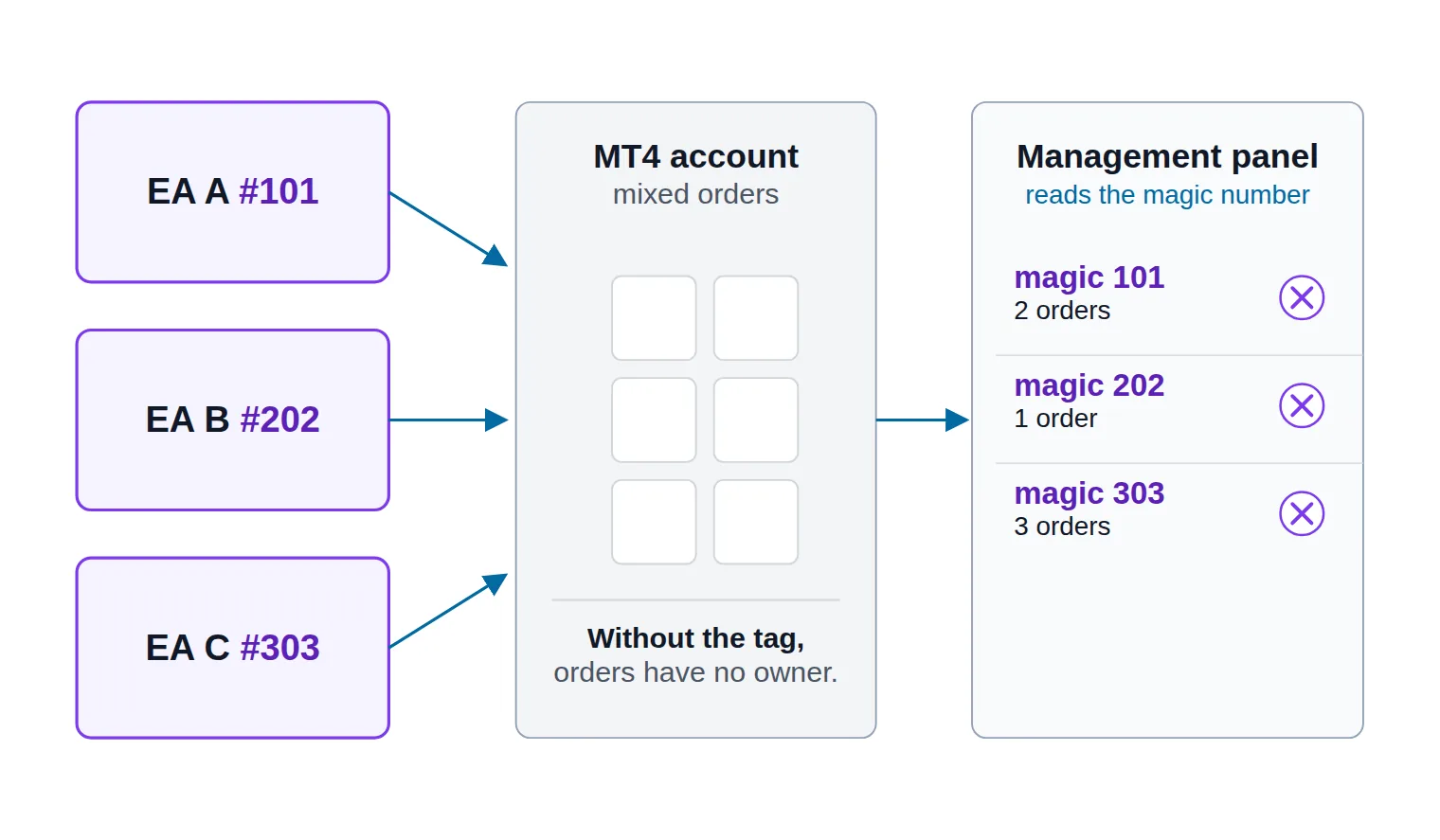
The moment you run a second EA, MT4's account view stops answering your questions. The Trade tab shows a pile of orders with no owner. Was that EUR/USD short opened by the mean-reversion robot or the news-filtered one? Did the grid EA hedge itself, or did two robots take the same trade from different logic?
The key that unlocks this is the magic number: an integer each EA stamps on every order it places so it can recognise its own trades later. Utilities read that stamp and rebuild the view MT4 does not give you.
Every EA stamps its orders with a magic number; a management panel reads that stamp to group, track and close trades per robot.
Three practical uses, in order of how often they save you:
Ownership at a glance. Free MQL5 Market utilities such as MQLTA Show Magic Numbers list open and pending orders with their magic numbers and comments, so every position traces back to the robot that opened it. Grouping profit and loss per magic number turns "the account is down" into "the range EA is down and the trend EA is fine".
Conflict detection. Two EAs on correlated symbols, or one EA hedging another's position, doubles risk while looking like diversification on the Trade tab. You cannot spot that without owner-level grouping.
A single stop button. A kill switch panel that closes all positions — or only one magic number's positions — and detaches the robots is the difference between a bad ten minutes and a bad afternoon when a strategy misbehaves during a news spike.
Two habits make all of this work. Give every EA a unique magic number before it ever runs live, and keep one spare chart open purely for your management panel, since a utility EA cannot share a chart with a strategy EA.
Risk and Money-Management Overlays
An EA can only respect the risk logic written into it. If the code has no daily loss limit and no maximum drawdown ceiling, no amount of hoping adds one. An overlay is a separate utility that watches the account and enforces those limits from outside the strategy.
Three sub-types cover most of the need:
Equity stops and account protectors. These monitor floating equity — not just closed balance — and, when it falls past a threshold you set, close everything and optionally block further trading until you re-enable it. Utilities of this type are sold on the MQL5 Market under names like Equity Sentry EA and KT Equity Protector, and prop-firm variants enforce daily-loss and total-loss rules for funded-account traders. The distinction between account balance and live equity matters here, because a robot holding open positions can be far past your comfort level while the balance still looks untouched — see balance vs equity if that split is not automatic for you yet.
Position-size calculators. These translate "risk 1% of the account on this stop distance" into a lot size, either as an on-chart panel or as a rule the overlay enforces on the EA's orders. If you want to run the numbers outside the platform first, our lot size calculator does the same arithmetic.
Exposure caps. Maximum open trades, maximum lots per symbol, maximum total lots. Blunt, and exactly what you want when a martingale-flavoured EA decides today is the day it scales up.
Illustrative example
What an equity overlay watches while your EA trades
Daily loss180 / 500 $
36% of limit usedFlatten everything and pause at the limit
Total drawdown640 / 1000 $
64% of limit usedHard floor for the whole account
Open trades4 / 6
67% of limit usedBlocks a runaway grid or basket
Margin usage22 / 50 %
44% of limit usedHeadroom before stop-out risk
Illustrative thresholds only — you set every number yourself. The point is that the limits live outside the EA, so they hold even when the strategy's own logic does not.
An overlay turns 'I hope it behaves' into a set of thresholds the account cannot cross.
Two honest warnings. An overlay that force-closes positions can fight an EA whose logic expects to manage a basket back to break-even, so a strategy built around recovery may behave very differently with a hard equity stop bolted on — test that combination on demo before it meets real money. And no overlay removes the underlying exposure of leveraged trading; the size of the loss it can prevent is bounded by how fast price moves through your threshold. Our risk warning covers what that means in practice.
Correlation exposure is the one risk an equity overlay cannot see, and it has its own tool family — next.
Sentiment and Correlation Panels
Running one EA on EUR/USD and another on GBP/USD feels like diversification. Often it is one bet on the US dollar, taken twice, at double the size.
FX Blue Correlation Matrix shows how a set of instruments has moved together over a chosen window, and Correlation Trader narrows that to a two-symbol comparison. Both answer the question that matters to an EA portfolio: if these robots all fire long today, how many independent positions do I really have?
Hidden concentration
Illustrative correlation snapshot across an EA basket
6×6 matrix
Inverse
-1.0-0.50+0.5+1.0
Aligned
EUR/USD and GBP/USD near +0.86: two EAs holding both are one dollar position, not two.
Illustrative values, not live data — your own matrix will differ by window and by broker feed. The lesson is the shape, not the numbers.
Sentiment panels such as Sentiment Trader show the long/short split of positions held by a broker's client base. Treat that as one venue's book rather than the market's opinion — it is a crowd-behaviour input for your own judgement about when to stand a robot down, never a signal to trade on directly.
The practical workflow: check the matrix before you add a new EA to the portfolio, not after. If the candidate's symbols move closely with what you already run, either cut the position size on both or pick a different instrument.
Alerts and Notifications for EAs Running Unattended
The whole point of automation is not sitting in front of the screen. That is also why silent failures are the expensive kind: an EA that quietly stopped trading, a terminal that lost its connection, an equity threshold crossed at 2 a.m.
MT4 ships with more of this than most traders use:
The Alerts tab in the Terminal window fires price-level alerts locally.
Push notifications send messages to the MT4 mobile app on your phone. You enable them under Tools → Options → Notifications and paste in the MetaQuotes ID shown in your mobile terminal's settings. With trade-operation notifications switched on, the platform pushes fills, balance operations and margin-call states to the phone by itself — no add-on required. That is the fastest reliability win on this page, and it costs nothing. See push notification alerts for how these differ from in-platform alerts.
Where a dedicated tool earns its place is conditional logic. FX Blue Alarm Manager lets you define the condition — a price level, an indicator state, an account event — and attach an action to it, including email and notifications, so alerts can fire on things MT4's built-in alerts cannot express.
Design the alert set around silence rather than noise. The four that actually matter for unattended EAs are: a position opened or closed, the terminal lost its connection to the server, equity crossed your warning threshold, and no trading activity for far longer than the strategy's normal gap. Anything chattier gets ignored within a week — and MT4 throttles push messages anyway, so an alert wired to every tick will simply be dropped.
Data Export and Performance Tracking
After a few months of running several robots, the question stops being "is the account up" and becomes "which EA earns its chart slot". MT4's built-in reporting cannot answer that, because it does not group anything by strategy.
Three exits from the platform, in increasing order of effort:
The detailed statement. Right-click in Account History and save a detailed report. It is static HTML, but it is complete and it is free.
Excel RTD. The FX Blue Excel RTD link streams live account, ticket and price data into Excel through ordinary spreadsheet formulas — no macros, no code. This is what you want for a per-magic-number performance sheet that updates itself while the robots trade.
Auto-import analytics. Services such as FX Blue Live and Myfxbook pull your history automatically and chart it, which is the low-maintenance option if you would rather not maintain a spreadsheet.
Whatever you export into, track the same handful of things per magic number rather than per account: the shape of the equity curve, the profit factor, the depth of the worst losing stretch, and how long the strategy spent recovering from it. A robot with a steady curve and a shallow drawdown is often the one worth keeping over the one with the biggest headline profit.
How Do You Safely Install a Third-Party MT4 Tool?
This is where a tools roundup owes you more than a list. The MT4 add-on world holds genuinely excellent free software and a long tail of junk — including the classic bait where a "free" EA turns out to want a payment, or your account number, before it will run.
Rank your sources honestly:
Your broker's own tools installer. Broker-distributed suites are vetted by a business with a licence to protect, and they are usually free with a live account.
The MQL5 Market. Products pass MetaQuotes' automated validation before a moderator reviews them, and paid products offer a downloadable trial. Note the trial's real limitation: it runs only in the Strategy Tester, which is fine for a robot and close to useless for a management panel — so for utilities, lean on free versions and demo-account testing instead.
MQL5 Freelance, when nothing off the shelf fits and you would rather commission the exact utility you need.
Free forum and blog downloads, last, and only with the checks below.
Source ranking only narrows the odds; what the file is then allowed to do on your machine matters just as much. MT4 asks separately for algo trading permission and for DLL imports, and that second prompt is the one to slow down on: a chart utility insisting on DLL access has reached outside the platform's sandbox, and a tool calling out to a URL you do not recognise belongs on a WebRequest whitelist you set deliberately, not one you approved by reflex.
Account access is the harder line — no legitimate MT4 utility needs your trading password, and the read-only investor password is the ceiling if a vendor asks for access at all. Everything after that is about interference, which is why a week on demo beside your actual EA settles more than any feature list: treat it as a forward test of the pairing rather than of the panel, because the question is never whether the tool opens, but whether your robot's orders still fill and close untouched around it. One new utility at a time keeps that question answerable.
The checklist below is that sequence in order — one pass per install.
Pre-install checklist
Before a new MT4 utility touches your live account
0 / 8
Source it from your broker's installer or the MQL5 Market where possible
Confirm what it is: utility EA, custom indicator, or broker plugin
Open a dedicated chart for it if it is a utility EA
Read the permission prompts — question any DLL or unknown WebRequest access
Give it no trading password; investor (read-only) is the ceiling if access is unavoidable
Run it on demo beside your live EA for a full week
Check your EA's orders still fill and close as expected with the tool attached
Install one new tool at a time so you can attribute any change
★
Checklist complete — you’re cleared to proceed.
Eight checks that separate a useful add-on from an expensive lesson.
Where the Toolbox Ends
Three or four needs come up constantly in this conversation and none of them is an add-on, so it is worth naming where the boundary sits.
Uptime is not a plugin problem. Every locally-held stop, every alert and every unattended robot depends on the terminal being awake and connected, which is a hosting question — a VPS for your EA rather than another .ex4 file.
Missing capability is sometimes a platform question. If what you want does not exist for MT4 because MT4 itself cannot express it, the answer may be a different trading platform rather than a better add-on.
Nothing off the shelf fits. When no utility does the specific job, commissioning custom MQL4 code is the honest route — and it is usually cheaper than assembling four half-fitting tools that fight each other.
The venue is not on MetaTrader at all. If the account you want to trade lives on a broker or exchange outside MT4, no add-on bridges it; that is an MT4/MT5 connector, a different category of software entirely.
Your Next Move
Do not install seven tools this weekend. Take the single friction that has cost you the most this month — the invisible position, the missed disconnection, the session you wish had stopped itself sooner — and fix that one first.
For most traders running EAs the order that works is: switch on MT4's built-in push notifications today, run your broker's tools installer this week, and only then go shopping on the MQL5 Market for the specialised overlay your setup actually needs. Each addition gets a week on demo beside the live strategy before it is trusted with real money. If a term here was new, our trading glossary keeps the definitions in one place.
FAQ
Do MT4 add-ons slow down the terminal?
They can, and the culprit is almost always a scanner or dashboard recalculating across many symbols and timeframes on every tick. Event-driven panels and utility EAs are cheap; multi-symbol scanners are the expensive ones. If your terminal starts lagging after an install, reduce the number of symbols the tool watches before you blame your EA.
Can I run a utility EA on the same chart as my strategy EA?
No. MT4 allows exactly one Expert Advisor per chart, and attaching a second replaces the first — which silently stops your strategy. Open a separate chart window for each utility EA. Custom indicators are the exception: several can sit on the same chart as a running EA without conflict.
Are free MT4 tools safe to use?
Free is not the risk factor; the source is. Broker-distributed suites and free products on the MQL5 Market cost nothing and are still vetted. A file from an anonymous forum post that demands DLL imports and asks for your account number is a different proposition regardless of price. Judge by where it came from, what permissions it wants, and how it behaves on a demo account for a week.
Will an add-on interfere with my EA's trades?
It can, and that is precisely what demo testing is for. Any tool that closes or modifies orders — an equity overlay, a close-all panel, a trailing-stop utility — will touch your robot's positions unless it is filtered by magic number. Configure that filter deliberately, then confirm on demo that the robot's normal open-and-close cycle still completes with the tool attached.
Do these tools work on MT5 as well?
Most broker-distributed suites and marketplace utilities ship in both MT4 and MT5 builds, but they are separate files — an .ex4 will not run on MT5. Download the build that matches your platform, and check the product page rather than assuming, because a handful of MT4-era tools were never ported.
Sources & Further Reading
Want to go deeper? These independent, authoritative sources shaped this guide — each one is worth reading in full:
The Cross-Market Desk is the SignalBots editorial team for topics that span every market — platform connectors, copy trading, partnership and IB programs, and the general mechanics of trading automation. We research and write the guides that apply no matter what you trade.




Discussions 0
Leave a comment