You have an .ex4 or .ex5 file sitting in your downloads folder, and MetaTrader has no idea it exists. Or the more frustrating version: you dragged it onto a chart an hour ago, the name is sitting there in the corner, and the Trade tab is still empty.
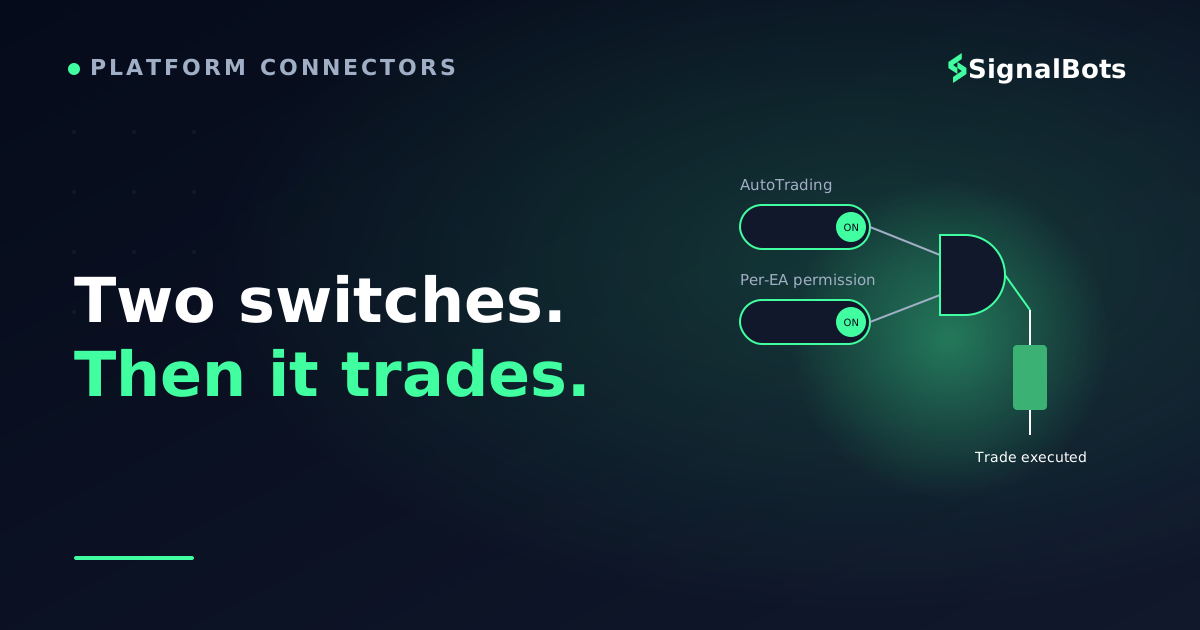
Neither problem is about your strategy. Both are about a short install-and-permission sequence that MetaTrader deliberately keeps behind two separate switches — one for the whole terminal, one for that specific robot. Miss either and you get silence, with no error message to tell you why.
This page walks that sequence end to end on MetaTrader 4 and MetaTrader 5, then shows you how to read the terminal's own running/not-running signal so you never have to guess again. It assumes you already know what an Expert Advisor is and that you have a broker account open — the layer underneath, how an EA actually executes trades on MT4, is a separate topic from getting it switched on.
Key Takeaways
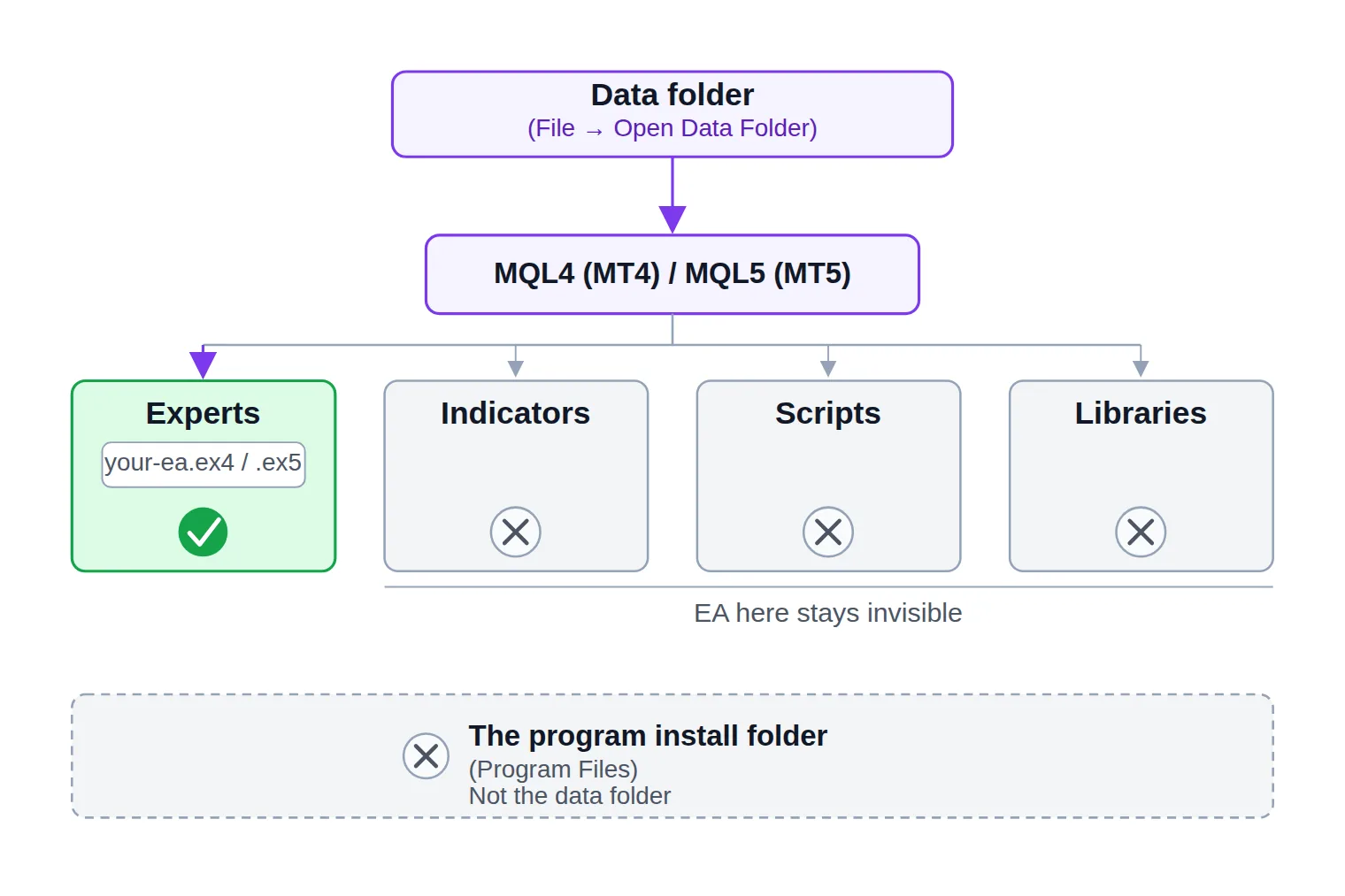
An EA only becomes visible to the terminal when the file sits in the Experts subfolder of MetaTrader's data folder (MQL4/Experts on MT4, MQL5/Experts on MT5) — open it via File → Open Data Folder, never by guessing the path.
Automated execution is gated by two independent switches: the terminal's AutoTrading (MT4) / Algo Trading (MT5) button, and the per-EA Allow live trading checkbox on the Common tab. Both must be on.
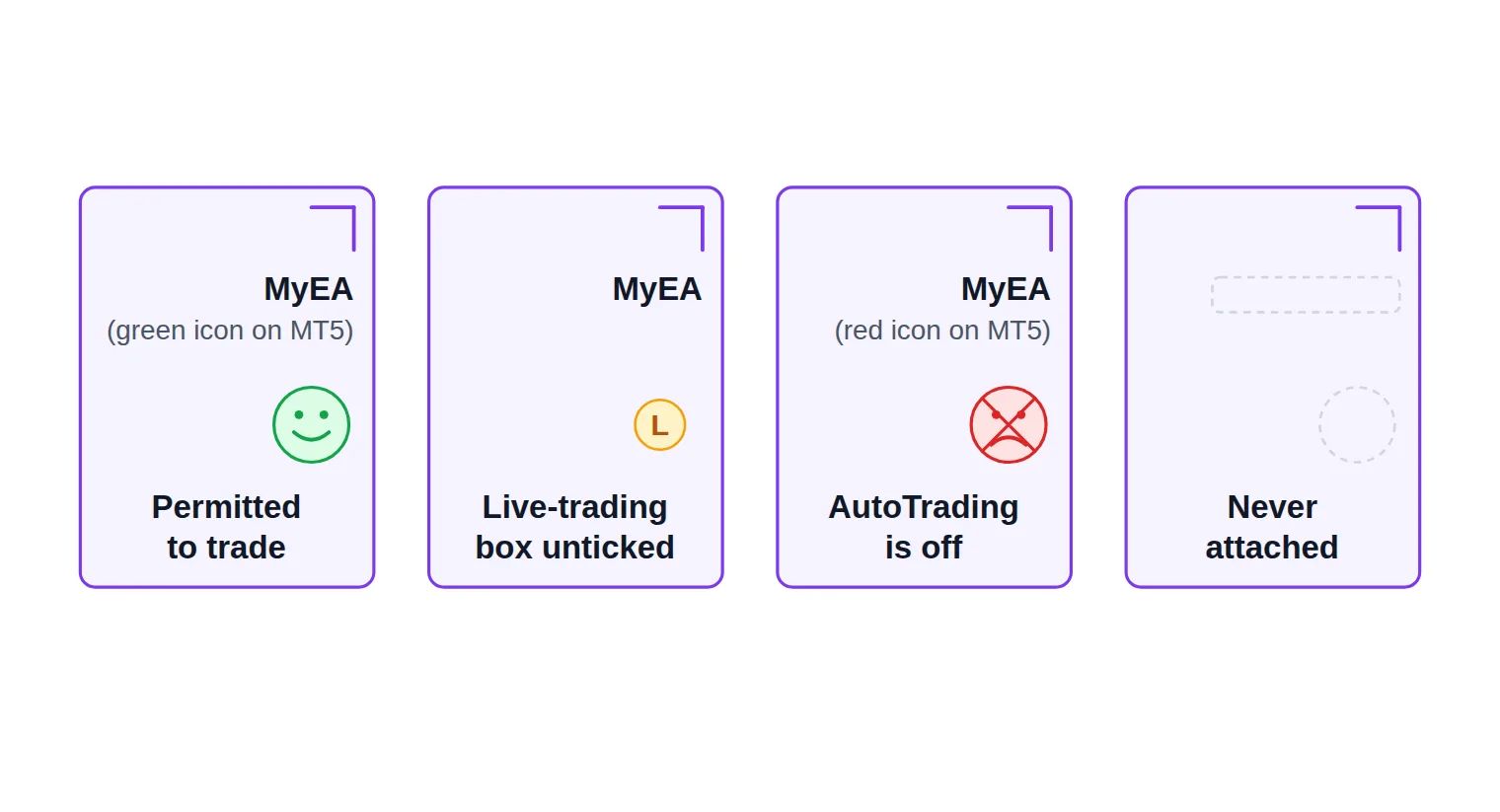
The chart's top-right corner is the status light: a smiley or green icon means permitted, an "L" means the per-EA box is unticked, a crossed face or red icon means the terminal toggle is off.
When a permitted EA still places no trades, read the Experts and Journal tabs first — a closed market, a broker symbol suffix, insufficient free margin and a blocked DLL import account for most silent robots.
Table of Contents (18 min read)Contents
What You Need Before You Start
Five things, and it is worth confirming all five now rather than debugging later:
The compiled EA file. An Expert Advisor ships as .ex4 (MT4) or .ex5 (MT5). If you were handed .mq4 or .mq5 instead, that is MQL4 or MQL5 source code — it goes in the same folder, but it has to be compiled in MetaEditor before the terminal will run it.
The right file for your platform. An .ex4 will not run on MT5 and an .ex5 will not run on MT4. They are different compilers producing different formats, not two names for the same thing.
MetaTrader 4 or MetaTrader 5, installed and logged in to a broker account. A demo account is the correct place to start.
The symbol and timeframe the EA expects. Most EAs are built for one instrument on one timeframe. Attaching a 15-minute gold robot to a daily EUR/USD chart is not a small mismatch — it is a different strategy.
A machine that stays awake. The terminal has to be open and connected for the EA to receive a single price tick.
The run sequence
From downloaded file to live EA, in six moves
1
Drop the file in the Experts folder
File then Open Data Folder, then MQL4/Experts on MT4 or MQL5/Experts on MT5. Nowhere else in the tree works.
2
Refresh the Navigator
Right-click inside the Navigator window and choose Refresh, or restart the terminal, until the EA name appears.
3
Attach it to the right chart
Open the symbol and timeframe the EA was built for, then drag the EA from the Navigator onto that chart.
4
Tick the per-EA permission
In the properties dialog that opens, allow live trading on the Common tab before you click OK.
5
Switch on the terminal toggle
Click AutoTrading on MT4 or Algo Trading on MT5 so the button turns green.
6
Read the chart corner
A smiley on MT4, or a green icon on MT5, next to the EA name means it is permitted to trade.
The whole sequence. Steps 4 and 5 are the two independent switches most silent EAs are missing.
Installing Your EA on MT4
Two moves: put the file somewhere the terminal actually reads, then put the EA on a chart.
Copy the File to the Right Folder
MetaTrader does not read Expert Advisors from wherever you saved them, and it does not read them from the folder it was installed into. It reads them from its data folder, which lives somewhere else entirely and is different for every terminal instance you have installed.
In MT4, open File → Open Data Folder. A file-explorer window opens on the correct directory — you never have to hunt for the path yourself.
Open MQL4, then Experts.
Paste your .ex4 file there. Not in Indicators, not in Scripts, not in Libraries — the terminal reads those for different object types, and an EA sitting in any of them stays invisible.
Back in MT4, right-click inside the Navigator window and choose Refresh (or close and reopen the terminal). Your EA now appears under Navigator → Expert Advisors.
If the name does not show up after a refresh and a restart, the file is either in the wrong subfolder or in the wrong terminal's data folder — that second one bites anyone running two MetaTrader installations from two brokers on the same PC.
MetaTrader reads Expert Advisors from exactly one folder: Experts, inside the data folder it opens for you.
Attach the EA to a Chart
An EA in the Navigator is installed but inert. It only runs when it is bound to a chart, because the chart is what feeds it price ticks.
Open a chart for the exact symbol and timeframe the EA was written for.
Drag the EA from the Navigator onto that chart, or double-click its name.
The properties dialog opens. The Common tab holds the permissions (next section); the Inputs tab holds the EA's own parameters — lot size, risk percentage, stop distances, and usually a magic number it uses to recognise its own trades.
Click OK. The EA's name appears in the top-right corner of the chart.
One rule catches people out: one EA per chart. If you want the same robot on three pairs, you open three charts and attach it three times — and if you want two different robots on one account, give each a distinct magic number so neither closes the other's positions.
Does the Process Differ on MT5?
Not meaningfully. It is the same six moves, with four labels renamed and one file type that is genuinely not interchangeable. If you learned the sequence on MT4, you already know how to attach an EA to a chart on MT5.
MT4 vs MT5 quick reference
What changes
MetaTrader 4
MetaTrader 5
Destination folder
MQL4 → Experts
MQL5 → Experts
File the terminal runs
.ex4 (source .mq4)
.ex5 (source .mq5)
Terminal-level toggle
AutoTrading button
Algo Trading button
Per-EA permission
Allow live trading
Allow Algo Trading
Running indicator
Smiley beside the name
Green icon beside the name
Blocked indicator
An L, or a crossed/sad face
Red icon beside the name
Everything not listed here — drag-and-drop, one EA per chart, the Inputs tab, the refresh step — is identical on both platforms.
Two MT5-specific notes worth thirty seconds of your attention. First, the toolbar button was renamed: on MT5 you are looking for Algo Trading, not AutoTrading, and older builds label the per-EA checkbox Allow Auto Trading rather than Allow Algo Trading — the same switch either way. Second, if the EA was designed for MT4 and someone recompiled it for MT5, check whether your account is hedging or netting, because a robot that expects to hold opposing positions behaves differently on a netting account.
Turning On AutoTrading and Granting Permissions
This is the step that separates "installed" from "trading", and it is where most silent EAs are stuck. MetaTrader gates automated execution behind two independent switches, and both must be on.
1. The terminal-level toggle. Click the AutoTrading button on the MT4 toolbar, or Algo Trading on MT5. It turns green when automated trading is permitted for the whole platform, red or grey when it is not. The same setting lives under Tools → Options → Expert Advisors as Allow automated trading (MT4) / Allow Auto Trading (MT5).
2. The per-EA permission. Right-click the chart the EA is attached to, choose Expert Advisors → Properties, open the Common tab, and tick Allow live trading (MT4) or Allow Algo Trading (MT5). This box is unticked by default. Attaching the EA does not tick it for you, and turning on the toolbar button does not override it.
The algo trading permission model exists precisely so that switching on the platform does not silently unleash every EA you have ever attached. Treat the two switches as an AND, never an OR.
Two more settings live on that same Options tab. Allow DLL imports stays off unless the EA's documentation explicitly asks for it — some commercial robots call external libraries, most do not, and it is a permission worth granting deliberately. Allow WebRequest for listed URL is only needed when the EA fetches data from a web address you paste into the list.
Finally, notice the three "disable automated trading when..." options in that dialog — when the account, the profile, or the chart's symbol or period changes. They are protective and sensible, but they mean that idly switching your chart from H1 to M15 can switch your robot off. If the EA was trading this morning and is not now, ask yourself what you changed.
How to Tell the EA Is Actually Running
MetaTrader answers this in the top-right corner of the chart, and once you can read it you never have to wonder whether the robot is live.
The EA name with a smiley (MT4) or a green icon (MT5): the EA is loaded and permitted to trade.
The name with an "L" next to it: the EA loaded, but its own Allow live trading box is unticked. Fix it in the Common tab.
The name with a crossed-out or sad face (a dagger in some builds), or a red icon on MT5: automated trading is switched off at the terminal level. Click the toolbar button.
No name at all: the EA never attached. Drag it onto the chart again.
Four corner states, four different fixes — read the glyph before you change anything else.
A smiling face means permitted, not profitable, and not even active this minute. For proof of life, open the panel at the bottom of the screen — Terminal on MT4, Toolbox on MT5 — and read the Experts tab. A healthy EA writes an initialisation line there the moment it loads, and most write something on every decision. The Journal tab records the platform's own side of the story: connection drops, rejected orders, and the blunt message automated trading is disabled.
Why Isn't My EA Trading?
You have followed every step, the corner icon looks right, and the account still shows zero positions. Work through the terminal's own logs rather than guessing — the answer is almost always written down somewhere.
Troubleshooting
Attached and permitted, but nothing is happening
Take itProceed with careSkip / stand aside
Diagnose from the logs outward: what the terminal recorded narrows the possible causes to one.
The causes worth knowing by name, roughly in the order they occur:
One of the two switches is off. Still the most common answer. The toolbar button green, the Common-tab box ticked — check both, not one.
The market is closed. Weekends, session gaps and broker holidays produce a perfectly healthy EA that does nothing at all.
The symbol name does not match. Brokers add suffixes (EURUSD.m, XAUUSD_raw), and an EA that hard-codes EURUSD will not find its instrument. This is a symbol mapping problem, and it is usually solvable in the EA's inputs.
The file is for the other platform. An .ex4 on MT5 either refuses to appear or refuses to run.
There is not enough free margin. The EA calculates a position your balance cannot support, the server rejects it, and the rejection lands in the Journal rather than on your screen.
A permission the EA needs is blocked. DLL imports, or a WebRequest URL that was never added to the allowed list.
The terminal is busy. On MT4, several EAs competing for a single execution thread produce the trade context is busy error — the trade was attempted and dropped, not skipped.
Something changed underneath it. Switching account, profile, symbol or timeframe can auto-disable trading if those protective options are ticked.
Test It First, Then Keep It Running
You now have a robot that can place orders on your account without asking you first. It will execute your rules without hesitating, including the losing ones, and no simulated result promises anything about future fills — slippage, weekend gaps and broker-side rejections all change what a strategy does live, which is why every automated system carries a genuine risk of losing money. Two decisions are worth making before you close the laptop.
First, validate it. MetaTrader ships with a Strategy Tester that replays historical prices through the EA so you can watch how it behaves across months in a few minutes. Testing the EA before running it live is a skill of its own, with its own pitfalls — reading a backtest honestly is where most of that work sits — but the minimum bar is simple: never let an EA place its first order on a live account.
Second, decide what keeps it powered. The EA runs inside your terminal, not on the broker's server, so a closed laptop or a dropped connection is a stopped robot. Keeping the EA running 24/7 means moving the terminal onto a VPS — a small always-on machine that keeps MetaTrader connected while your own computer sleeps.
And before you walk away, run through the last five minutes properly:
Pre-flight
Your first five minutes after switching the EA on
0 / 7
Confirm the chart corner shows the running icon - not an L, not a crossed face, not an empty corner.
Open the Experts tab and check the EA logged an initialisation line with no errors under it.
Re-open the Inputs tab and read the lot size back to yourself; it is the one number that decides what a mistake costs.
Confirm the chart's symbol and timeframe match what the EA was built for, broker suffix included.
Give each EA a unique magic number if more than one is running on the same account.
Decide what stays powered on - your machine, or a VPS that keeps the terminal connected when you shut the lid.
Note the time you started it, so tomorrow's Journal entries actually mean something.
★
Checklist complete — you’re cleared to proceed.
Ninety seconds of checks here saves the 'why did it do that?' investigation tomorrow.
If the lot size in that third item is a number you inherited from a vendor rather than one you chose, work it out before the EA trades again — a forex lot size calculator turns your account balance and stop distance into the position size you should actually be running.
Installing an EA takes four minutes. Knowing what the corner icon means, and where the terminal writes down its complaints, is what turns those four minutes into a robot you can leave running while you sleep.
FAQ
Can I run two Expert Advisors on the same chart?
No. MetaTrader binds one EA to one chart, and attaching a second replaces the first. To run several robots, open a separate chart for each — and give each one a distinct magic number so they never manage each other's positions.
Does MetaTrader have to stay open for the EA to trade?
Yes. The EA runs inside your terminal, not on the broker's server. Close MetaTrader, lose your internet connection, or let the machine sleep, and the robot stops until the terminal is back and connected.
Where exactly is the MetaTrader data folder?
Its path differs per installation, which is why you should never type it from memory. Use File → Open Data Folder inside the terminal you want to install into — that opens the right directory for that specific installation, even when several brokers' terminals share one PC.
Can I use an MT4 Expert Advisor on MT5?
Not as a file. .ex4 and .ex5 are compiled from different languages and are not interchangeable. The strategy can be ported, but that means recompiling MQL4 source as MQL5 — ask whoever supplied the EA for the MT5 build rather than trying to force the MT4 file.
Do I need to tick "Allow DLL imports"?
Only if the EA's own documentation says so. Most robots run entirely inside MQL and need nothing beyond live-trading permission. Granting DLL access lets the program call code outside MetaTrader, so turn it on deliberately, for software you trust, rather than as a reflex when something does not work.
Will an EA work on a demo account?
Yes, and that is where it should start. Demo accounts use the same execution path and the same permission switches, so everything in this guide applies unchanged — which makes demo the cheapest place to discover that the lot size was wrong.
Sources & Further Reading
Want to go deeper? These independent, authoritative sources shaped this guide — each one is worth reading in full:
The Cross-Market Desk is the SignalBots editorial team for topics that span every market — platform connectors, copy trading, partnership and IB programs, and the general mechanics of trading automation. We research and write the guides that apply no matter what you trade.



Discussions 0
Leave a comment