You have two windows open. On the left, a TradingView chart with your indicators tuned exactly the way you like them. On the right, the Quotex trade panel. Every time your setup appears you glance left, then click right — and somewhere in that gap you started wondering whether the two could simply talk to each other.
That is what almost everyone typing quotex tradingview into a search box is really asking. Not "what is TradingView", but: is there a connect button, a plugin, an account sync — something that turns a chart signal into a placed trade without you being the wire between them?
The short answer is that no such button exists, and a real workflow exists anyway. This guide covers what "using TradingView with Quotex" honestly means, how to line your charts up with what Quotex actually quotes, how to build an alert that survives a short expiry, and the two paths that alert can take to become a placed trade.
Key Takeaways
Quotex has no first-party TradingView link: no account sync, no order routing, and no Quotex entry in TradingView's broker directory. A broker chart that looks like TradingView is a licensed rendering library, not your account.
The workable setup is two layers side by side — TradingView for analysis and alerts, Quotex for execution — joined either by your own hand or by third-party bridge software you install and control.
Mirroring only works where an external price exists: major pairs map closely, OTC pairs cannot be mirrored at all because their price is generated internally.
The cost of the manual path is the seconds between bar close and click, which move your strike; pre-stage the trade panel, evaluate signals on closed bars only, and prove the chain on a demo balance first.
Table of Contents (33 min read)Contents
Does Quotex Support TradingView Charts and Signals?
Quotex has no first-party TradingView integration. There is no way to sign into your TradingView account from the Quotex platform, no Quotex entry in TradingView's broker directory, and no route for an order placed on a TradingView chart to arrive as a Quotex contract. TradingView's trading panel reaches the exchanges and brokers it has signed integrations with; fixed-payout platforms of the Quotex type are not among them.
Two things muddy this, and both are worth clearing up before you build anything.
A broker's chart can be powered by TradingView without being your TradingView. TradingView licenses its charting engine — Advanced Charts — as a library any platform can embed in its own site. When a broker's chart looks and behaves like TradingView, that is frequently what you are looking at: the rendering layer, not the product. It carries drawing tools and a standard indicator set, but not your saved layouts, not the Pine Script studies you wrote, not the alert engine, and certainly not webhooks. An embedded chart is a picture of TradingView, not an account link.
"Integration" in this niche nearly always means a third party standing in the middle. Every "TradingView to Quotex" tool you will come across is separate software that receives a TradingView alert and acts on your Quotex session for you. TradingView does not know Quotex exists. Quotex does not know the alert exists. The connection is something you install and maintain, and its reliability is entirely the third party's, not either platform's.
So here is the honest definition to build on: using TradingView with Quotex means running TradingView as your analysis and alerting layer alongside Quotex as your execution layer, with either your own hand or a third-party bridge closing the gap. Everything below is how you make that gap as small and as disciplined as possible.
Before you build
What a working TradingView-to-Quotex setup actually consists of
0 / 8
A TradingView chart on the symbol closest to the asset Quotex is quoting you.
A confirmed symbol match: you know which data feed you are reading, and you stay on it.
A chart interval that divides cleanly into the Quotex expiry you intend to buy.
An indicator or script whose condition is evaluated on bar close, never mid-bar.
An alert message that names the asset, the direction and the expiry — readable at a glance and parseable by software.
A decided execution path: you place the trade by hand, or a third-party bridge fires it from the webhook.
A full demo run of the whole chain before any real stake passes through it.
A written rule for what to do when the alert arrives too late to act on — usually: skip it.
★
Checklist complete — you’re cleared to proceed.
There is no single integration to switch on — there are seven small decisions, and the last two are the ones people skip.
TradingView and Quotex are complete systems that do not know about each other — the gap is where you or your bridge software goes.
Mirroring Your Quotex Assets and Timeframes on TradingView
Analysis only helps if it describes the instrument you are about to buy. On Quotex you are not buying EUR/USD — you are buying a fixed-payout contract written against Quotex's own quote for EUR/USD. Those are related objects, not identical ones, and the whole mirroring step exists to keep the difference from ambushing you.
Step 1 — pick one TradingView symbol and stay on it. TradingView carries the same major pair from several different data sources, and each source produces slightly different candle bodies, wick lengths and therefore indicator values. Choose the feed whose candles most closely track what you see on Quotex, then never rotate. Consistent symbol mapping is what makes your alert behave the same way tomorrow as it did today.
Step 2 — accept that the last digits will not match. Quotex prices from its own book, so your mirrored chart will drift a fraction from the strike you are actually given. On a 1-minute or 5-minute directional read, that drift is noise. On a signal sitting exactly on a level, it is not — which is why entries taken "right on the line" are the least trustworthy ones to lift from a mirrored chart.
Step 3 — treat the OTC assets as a separate problem. Quotex's OTC instruments are the weekend and after-hours pairs whose price is generated internally rather than sourced from an exchange or interbank feed. No TradingView symbol tracks them, because there is nothing external to track. You cannot mirror an OTC chart, and any tool claiming otherwise is showing you a correlated instrument, not the one you are trading. The two honest choices: run your TradingView workflow only when real markets are open, or trade OTC from Quotex's own chart and keep TradingView as a strategy lab rather than a live feed.
Step 4 — match the chart interval to the expiry, not to habit. A 1-hour chart cannot tell you anything actionable about a 60-second contract, and a 15-second chart will fire more noise than you can trade. The rule that keeps this sane is simple: your chart interval should divide into your expiry, and your signal should be evaluated only on completed bars. If you intend to buy a 5-minute contract, read a 1-minute or 5-minute chart and let the bar close before you decide.
Close — direction and structure carry over; quoted digits differ
Metals and crypto
The same instrument on a spot or index feed
Usable — but feeds diverge more than in FX, so lock one in
Index products
An index or index-CFD symbol
Check first — session hours and settlement rules can differ
OTC pairs
No equivalent symbol exists
Cannot be mirrored — the price is generated internally
The mirroring step succeeds or fails on one question: is there an external price for TradingView to show you?
Setting Up a TradingView Alert for Short-Expiry Entries
Alerts are the only part of TradingView that reaches outside the browser tab, which makes them the hinge of this entire workflow. A chart is something you watch. An alert is something that finds you.
The alert dialog has four settings that decide whether the alert is tradable on a short expiry:
Condition. Point the alert at your indicator's condition, or at a Pine script's own alert() calls. Scripts give you dynamic message text; a built-in indicator condition gives you a fixed one.
Trigger frequency. Set it to fire once per bar close. This is the single most consequential choice here — a condition that is true forty seconds into a five-minute bar can be false when that bar finishes, and an alert that fires on the intrabar state will hand you signals that never existed in the closed data.
Expiration. Alerts do not run forever. A silent afternoon is sometimes a quiet market and sometimes an alert that quietly expired, so check it before you conclude your setup stopped working.
Notifications. Popup, mobile push and email are available broadly. The webhook URL field — the one that makes automation possible at all — requires a paid TradingView plan with two-factor authentication switched on.
The alert message itself deserves more thought than it usually gets, because it has to serve two readers. You need to act on it in one glance on a phone screen. A bridge needs to parse it without ambiguity. Structured JSON satisfies both, and TradingView's placeholders fill in the live values at fire time.
The double-brace placeholders are filled by TradingView when the alert fires; every other field is yours to define.
Three practical notes on that webhook payload. First, the field names are not a standard — whichever bridge you use defines what it expects, so treat the shape above as a template to adapt rather than a spec to copy. Second, keep account explicit and default it to demo; the most expensive bug in this whole workflow is an alert firing into a live balance you thought was a practice one. Third, TradingView cancels a webhook request if your endpoint takes too long to answer and only delivers to standard web ports, so a bridge has to acknowledge first and think afterwards.
From Alert to Trade: Manual Entry vs. a Third-Party Bridge
Once the alert fires, exactly two things can happen next. Either you read it and place the trade, or software reads it and places the trade. There is no third path, and no amount of searching will produce one, because neither platform has an agreement with the other.
sequenceDiagram
    autonumber
    participant TV as TradingView
    participant You as Trader
    participant Bot as Bridge bot
    participant QX as Quotex
    Note over TV,QX: No account link exists between the two platforms
    TV->>TV: Condition met on bar close
    alt Manual path
        TV->>You: Popup, push or email alert
        You->>QX: Confirm asset, stake, expiry
        QX-->>You: Contract opens at the live quote
    else Bridge path
        TV->>Bot: Webhook posted to your endpoint
        Bot->>Bot: Validate payload against your rules
        Bot->>QX: Fire the trade in your session
        QX-->>Bot: Contract opens at the live quote
    end
Both paths end at the same place. What differs is who spends the seconds between the bar closing and the contract opening.
Placing the Trade Manually Within the Expiry Window
The clock starts the instant the bar closes. Between that moment and your contract opening sit a notification delivery, a tab switch, an asset check, a stake entry, an expiry selection and a click — and the price keeps moving through all of it.
The fix is preparation, not speed. Before the session, have Quotex open on the asset you are watching, the stake preset, and the expiry already selected. When the alert lands, the only decisions left should be direction and whether to take it at all. Everything you configure in advance is a second you do not spend afterwards.
It also helps to treat your own alert the way you would treat any external signal provider: as a time-stamped suggestion with a shelf life, not an instruction. Write the shelf life down. If the alert is more than a set number of seconds old by the time you are ready to click — pick a number and hold yourself to it — you skip that one and wait for the next. Chasing a stale signal into a shorter remaining window is how a decent setup turns into a coin flip.
Using a Rule-Based Bot to Consume the TradingView Webhook
The automated path replaces you with a listener. A webhook bot — usually a desktop application or a browser extension running on your own machine — exposes an endpoint, receives the alert payload, checks it against rules you set, and then drives the Quotex trade panel on your behalf. This is ordinary auto-trading software; the TradingView side is just where its instructions come from.
What separates a sane bridge from a reckless one is not its win-rate marketing. It is the boundaries it enforces:
Payload validation — does it reject an alert whose asset or direction it does not recognise, or does it act on anything that arrives at the URL?
Hard caps — can you set a maximum stake, a maximum number of open contracts, and a daily stop that the bot obeys without you watching?
Demo and live separation — is the account mode explicit and hard to confuse, or is one dropdown all that stands between a practice run and real money?
Where it runs — does it operate locally against your own browser session, or does it want your platform credentials on someone else's server?
Failure behaviour — when the endpoint is unreachable or the asset is closed, does it log and stop, or retry blindly into a market that has moved?
Comparing specific bots against those criteria is a job for the named Quotex bot reviews; this section is only here so you understand where the software sits in the chain. Note that a bridge removes human signal latency but not uncertainty — it still has to locate the right asset in a web interface that can change, and it still fires into whatever quote exists at that instant.
Worked Example: A Stochastic and Moving-Average Alert on EUR/USD
Take a common short-expiry template and walk it end to end, so the abstract parts land somewhere concrete.
The setup: a 5-minute EUR/USD chart with a 50-period simple moving average and a stochastic oscillator. The rule is a trend filter plus a timing trigger — take a CALL only when price is trading above the moving average and the stochastic crosses up out of its oversold band on a completed bar. The alert is set to fire once per bar close, and the message carries the asset, the direction and a five-minute expiry.
Here is what actually happens when it triggers.
EUR/USD 5m — where the strike drifts between alert and clickEUR/USD5m
Illustrative prices. The signal was right and the trade still gave up part of its cushion to the forty seconds between the alert and the click.
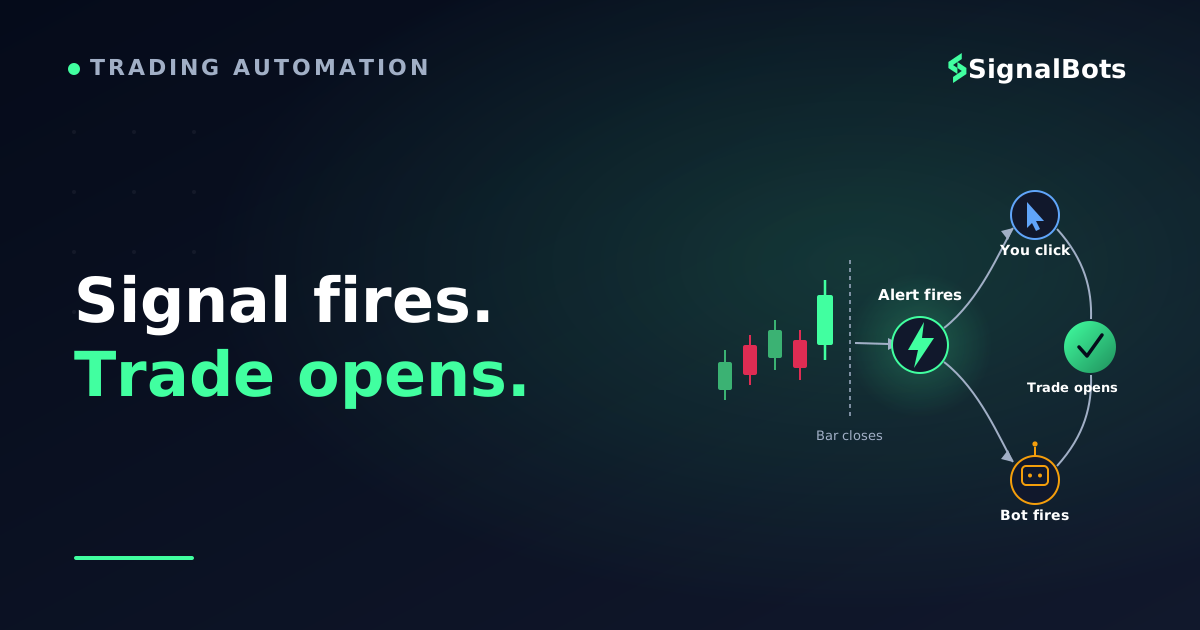
The bar closes at 1.0866 and the alert fires. By the time the notification reaches you, you switch tabs, confirm the asset and click, roughly forty seconds have passed and the quote has moved to 1.0871. Your contract is now written against 1.0871, not 1.0866. For a CALL that means price must finish above the higher number — five pips of cushion handed to the clock before the trade even starts. The direction was correct and the setup still cost you part of its margin for error.
That is the honest arithmetic of the manual path, and it is why the preparation rules above matter more than the indicator settings. It is also why the automated path exists at all.
Two more things belong in this example. First, judge the rule the way you would judge any strategy: run it as a backtested idea first, then forward-test it on a Quotex demo balance while logging every alert alongside whether you actually got it placed in time. The gap between "the alert was right" and "I traded it" is your real result, and it does not show up in a backtest at all. Second, remember what fixed payouts do to the maths — because the payout percentage on a winning contract is less than your stake, the break-even win rate sits meaningfully above half, and you can work out exactly where for your own payout with our binary options break-even calculator. Any historical or backtested figure you see quoted for a setup like this describes the past and nothing else; the risk warning applies to every number in this section.
If You Would Rather Not Build the Chain Yourself
Everything above is a build. It rewards people who enjoy wiring systems and want their own logic firing the trades. If what you actually wanted was the entry signal rather than the infrastructure, two shorter routes exist and it is worth naming them plainly.
The first is a packaged tool. The wider range of Quotex trading bots bundles the signal logic and the execution together, so instead of connecting two platforms you are configuring rules inside one application — a different set of trade-offs, and the subject of a comparison in its own right rather than a paragraph here.
The second is to read a signal feed somebody else runs. Our free binary options signal feed publishes live entries with their reward-to-risk context, which means you can see the same kind of entry a TradingView alert would produce without configuring a chart, a script or a webhook. To be clear about what that is and is not: it is a feed you read and act on by hand — not a TradingView alert, not a webhook bridge, and not an auto-execution tool. If the workflow in this article is the one you want, keep building it; the feed does not replace it.
The Real Limits: Latency, Repainting and No Native Sync
Knowing where this setup stops working is worth as much as knowing how to build it. Five limits are structural rather than fixable.
Latency is unavoidable on the manual path. TradingView has to evaluate the condition, dispatch the notification, and get it onto your device before you can act. Each hop costs time you do not control, and short expiries are precisely where that time is most expensive. A bridge compresses the gap to machine speed but does not eliminate it — the request still has to travel, the endpoint still has to respond promptly, and the software still has to find the right asset in a live web interface.
Repainting indicators will flatter you and then betray you. A study that redraws its own history looks immaculate on a scrolled-back chart and fires differently in real time. If your alert is built on one, your backtest and your live results are describing different strategies. Insisting on bar-close evaluation is the cheapest protection available.
OTC has nothing upstream to mirror. Because the price is generated internally, weekend and after-hours automation driven from a TradingView chart is structurally limited in a way no tool can engineer around. This is a property of the instrument, not a gap in the software.
No first-party sync is coming from the direction you are looking. TradingView's paper trading and its connected-broker features cover the venues it has integrated with, and a chart embedded inside a broker's website is a licensed rendering library rather than an account link. Time spent hunting for a hidden Quotex option in TradingView's settings is time spent looking for something that is not there.
The chain is only as reliable as its weakest link, and you own all of them. An expired alert, a paused script, a browser update that moves a button, a dropped webhook — each is silent. Build the habit of verifying that the chain is alive before you rely on it, and run the whole thing on a demo account until it has been boring for a while.
Every second between the bar closing and the contract opening is priced into your strike — preparation is what makes that sliver narrow.
Go back to those two windows. Nothing in this article closed the gap between them, because nothing can — what it did was shrink the gap to something you control: one chosen symbol, one interval that matches your expiry, one alert that fires on closed bars, and one decision made in advance about who clicks. That is the whole of what "quotex tradingview" means in practice, and it is enough to trade from.
FAQ
Can I place a Quotex trade directly from a TradingView chart?
No. Placing an order from a TradingView chart requires the venue to be one of TradingView's integrated brokers, and Quotex is not among them. Whatever your chart tells you, the contract itself is always opened in the Quotex interface — either by you or by third-party software acting on your session.
Do I need a paid TradingView plan for this?
Only for automation. Charting, indicators and popup, push or email alerts cover the manual workflow described here. The webhook URL field — the piece that lets an alert reach a bridge bot — is a paid-plan feature and additionally requires two-factor authentication on your TradingView account.
Why do the prices on my TradingView chart differ from Quotex?
Because they come from different sources. Your TradingView chart shows a data provider's feed, while Quotex quotes from its own pricing. The two track each other closely on major pairs but will not agree digit for digit, which matters most when a signal sits right on a level.
Can I use TradingView for Quotex OTC pairs?
Not as a live mirror. OTC prices are generated internally rather than drawn from an external market, so no TradingView symbol reproduces them. You can still use TradingView to develop and study a strategy, but the execution chart for an OTC contract has to be Quotex's own.
Which chart interval should I use for a 60-second expiry?
Read the interval your signal is evaluated on, and make sure it divides into the expiry. For a 60-second contract that generally means a 1-minute chart with the condition checked on bar close, using a higher interval alongside it purely as a trend filter rather than a trigger.
Is a TradingView-to-Quotex webhook bot safe to use?
It depends entirely on the software, and the questions to ask are the ones listed earlier: does it validate what arrives at its endpoint, does it enforce stake and trade-count caps, does it keep demo and live clearly separated, and does it run locally rather than asking for your platform credentials. Treat anything promising effortless profits as a warning sign rather than a feature, and prove the whole chain on a demo balance before it touches real money.
Sources & Further Reading
Want to go deeper? These independent, authoritative sources shaped this guide — each one is worth reading in full:
The Binary Options Desk is the SignalBots editorial team for fixed-time and OTC trading coverage. We research and write the guides that explain expiry timing, payout structure and disciplined entry across the major brokers.



Discussions 0
Leave a comment